Quick Summary
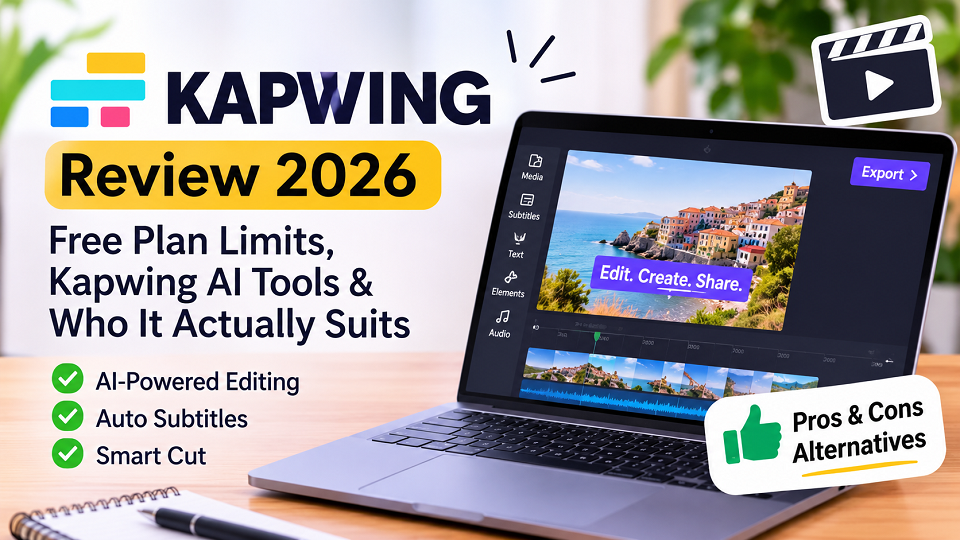
- What Kapwing is: a browser-based video editor for trimming, subtitles, resizing and combining clips, with no download needed.
- What Kapwing AI means: features such as Smart Cut (removes silences and filler), auto-subtitles with translation, and Clean Audio (voice isolation and noise removal), as described on Kapwing-related pages.
- Best for: short social videos, captioned clips, quick edits, and small teams that want to share one project by link.
- Common complaints: per-user cost for small teams, watermarked free exports, and some reviewers reporting upload failures, lag, or export errors.
- Not ideal for: long, complex film-style edits, or anyone who needs fully offline editing.
- Rating context: Gartner Peer Insights lists Kapwing at 3.6/5 based on 8 ratings. This is a small sample and should not be treated as a definitive measure of overall user satisfaction.
What Is Kapwing?
Kapwing is an online editor for video, images and audio. You open it in a browser, upload a clip, and edit on a timeline: trim, add text, add subtitles, resize for different platforms, and export. Because rendering happens on servers, you don’t need a powerful computer, which is a big reason people try it.
According to Gartner’s listing, it is a private company founded in 2018 and based in San Francisco, and its features include real-time team collaboration, subtitles and text overlays, and multiple export formats. Gartner describes a tiered subscription model with a free plan that has watermarked exports, while paid plans add higher upload limits and watermark-free exports. Gartner does not list prices on that page.
Kapwing at a Glance
| Detail | What published sources say |
| Type | Browser-based video, image and audio editor |
| Company | Private, founded 2018, based in San Francisco (Gartner listing) |
| Key tools | Trim, subtitles, text overlays, resizing, Smart Cut, Clean Audio |
| Collaboration | Real-time team editing and shared projects |
| Free plan | Exists; exports are watermarked (Gartner listing) |
| Paid plans | Higher upload limits and watermark-free exports; prices not listed by Gartner, so check Kapwing’s official page |
| Gartner rating | 3.6/5 from 8 ratings (small sample) |
| Works best for | Short captioned social videos and quick edits |
What Kapwing AI Actually Offers
Kapwing includes several AI-assisted tools designed to make everyday video editing easier. These features are particularly useful for creators who produce short videos, tutorials, interviews and social media content.
Smart Cut
Smart Cut automatically detects and removes silent sections from videos. It can help reduce the time spent manually trimming pauses in interviews, presentations and talking-head videos.
Auto Subtitles and Translation
Kapwing can automatically generate subtitles from spoken audio. Users can edit captions, adjust their appearance and translate subtitles into other languages.
Clean Audio
Clean Audio is designed to reduce background noise and make speech clearer. It can be useful when working with recordings captured in less-than-ideal environments.
Text-Based Editing
Kapwing also offers transcript-based editing features that let users work with spoken content through text rather than relying entirely on the video timeline.
Feature availability and usage limits can depend on the subscription plan. These descriptions are based on Kapwing’s published documentation, not independent testing by TechExploria.
For current feature details, visit Kapwing’s official website.
How to Judge Kapwing Before You Commit: A 5-Point Checklist
Most reviews list features. A more useful question is whether a tool survives your real workflow. This article is based on published sources rather than hands-on testing, so here is the checklist I’d suggest you run during your own free trial. It takes about 30 minutes.
- Upload reliability: does a 2-5 minute phone clip upload without errors? (Some reviewers on third-party pages report failed uploads and frozen projects.)
- Subtitle accuracy: how many words need fixing in a 60-second clip?
- Smart Cut quality: does it cut natural pauses, or clip the ends of sentences?
- Export result: what resolution and watermark do you get on the free plan?
- Speed on a normal laptop: does the timeline lag with a few layers?
Run these on your own footage before paying for anything. Marketing pages are written to look good; your clip is the real test.
Kapwing Free Plan: What to Expect
Kapwing offers a free plan, but it comes with export, storage and AI usage limits. According to its official pricing page, free users can export videos up to 4 minutes long in 720p, with a Kapwing watermark. The listed monthly export allowance is 30 minutes.
The free plan also includes AI credits. Paid plans offer longer exports, higher resolution, watermark-free downloads and additional AI credits.
Before upgrading, consider these points:
- Whether the free export duration is sufficient for your videos.
- How many AI credits your preferred tools consume.
- Whether you need 1080p or 4K exports.
- Whether watermark-free downloads are important.
- Whether the per-member subscription cost suits your team.
Pricing and usage allowances can change. Check Kapwing’s official pricing page before purchasing.
Pricing details last checked: November 19, 2026.
Kapwing Pros and Cons (Based on Published Information)
| Pros | Cons |
| Browser-based editing without installing desktop software | Free exports include a watermark |
| Tools for subtitles and translation | Free plan has export and AI usage limits |
| Smart Cut can reduce manual editing | Longer exports require a paid plan |
| Supports video resizing for social platforms | Requires a stable internet connection |
| Shared projects support team workflows | Per-member subscription costs may be expensive for small teams |
| Beginner-friendly editing workflow | Not intended to replace advanced professional desktop editing software |
These points are based on Kapwing’s published product information and third-party reviews. TechExploria has not independently tested the platform, so actual performance may vary depending on the user’s device, internet connection and project complexity.
What Users Praise and Complain About
Praise (Gartner reviewers and third-party summaries):
- Simple interface that doesn’t overwhelm beginners.
- Fast delivery of basic edits.
- Easy sharing and seeing teammates’ changes.
- Strong subtitle and transcript tools.
Complaints:
- Cost per user for small teams (Gartner reviewers).
- Failed uploads, frozen projects, export errors and lag, as reported on a third-party review page.
- Inconsistent support, per the same page.
A note on reliability: those problems come from summaries on a promotional page that is itself trying to steer readers toward a competitor, so verify with recent store or review-site comments rather than taking them as fact.
Kapwing Alternatives (Different From the Usual Lists)
Pages that rank for Kapwing tend to compare it with the same few names. These cover different needs. Check each site for current features and pricing, because I haven’t tested them for this article.
| Tool | Best for | Link |
| DaVinci Resolve | Free, powerful desktop editing and colour work; steeper learning curve | blackmagicdesign.com/products/davinciresolve |
| Descript | Editing video by editing the transcript, especially for talking-head and podcast content | descript.com |
| VEED | Another browser-based editor, with subtitle focus | veed.io |
| Canva (video editor) | Quick social videos if you already design in Canva | canva.com |
| Clipchamp | Simple editing, especially on Windows | clipchamp.com |
| Shotcut | Free, open-source desktop editor | shotcut.org |
How to choose: if you only need captions and trims, a browser tool like Kapwing is enough. If you edit long videos regularly, a desktop editor like DaVinci Resolve or Shotcut will handle it better and avoid upload issues.
Related Reading
Who Should Use Kapwing, and Who Shouldn’t
Good fit:
- Creators making short captioned videos for TikTok, Reels or YouTube Shorts.
- Small teams that want to share a project by link.
- People without a powerful computer.
Poor fit:
- Long, multi-layer film-style edits.
- Anyone who needs offline editing or can’t depend on a stable internet connection.
- Teams on a tight budget who need many paid seats.
Frequently Asked Questions
What is Kapwing AI?
“Kapwing AI” refers to AI-assisted features such as Smart Cut for removing silences, auto-subtitles with translation, and Clean Audio for reducing background noise. Names and availability can change, so check Kapwing’s site.
Is Kapwing free?
Yes, Kapwing has a free plan. According to its pricing page (checked November 19, 2026), free exports are watermarked and limited in length and resolution. Check the official pricing page for current limits.
Is Kapwing good for beginners?
Gartner reviewers praise its uncomplicated interface and fast basic editing, which suits beginners. Complex projects may be better in a desktop editor.
What is a good free alternative to Kapwing?
DaVinci Resolve and Shotcut are free desktop editors. Check each one’s current features before choosing.
Final Thoughts
Based on published reviews, Kapwing looks like a reasonable choice for quick, captioned, social-style videos, especially if you want to work in the browser. If your needs are heavier, or your budget is tight, compare it against the alternatives above first, and try the free plan on your own footage before paying.
Your turn: Have you used Kapwing? Tell us in the comments what worked and what didn’t, and which video editor you’d like reviewed next.
How This Article Was Researched?
This Kapwing guide was prepared using the platform’s official pricing information, published feature documentation, Gartner Peer Insights and selected third-party reviews.
Official Kapwing documentation was used to understand its editing features and subscription limits. Gartner Peer Insights was consulted for publicly available user feedback.
TechExploria did not conduct independent hands-on testing for this article. We have therefore avoided presenting untested performance claims as personal experience. Pricing, features and usage limits may change, so readers should verify current information on Kapwing’s official website before subscribing.
This article is an independently prepared informational guide and is not an endorsement by Kapwing.
Sources