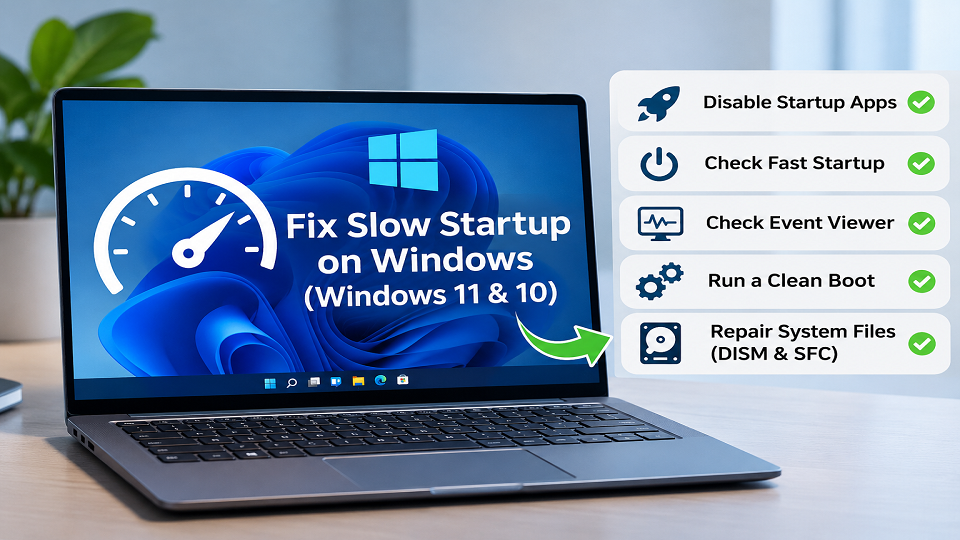
How to Fix Slow Startup Windows 11 & 10: 8 Easy Steps
The short version: How to fix slow startup Windows issues comes down to one question: where is your PC getting stuck? If your desktop is sluggish after you sign in, open Task Manager, go to Startup apps and switch off what you don’t need. If the wait happens before the sign-in screen, the cause is somewhere else (drivers, the drive, or the firmware), and trimming startup apps won’t touch it.
That’s the catch with slow boots. Windows can stall in three separate places, and each one has its own fix. So this guide starts by working out where your PC is stuck, then moves from quick, safe changes to deeper checks. It works for Windows 11, and for Windows 10 with a few menu names changed. Make one change at a time, and stop when the problem’s gone.
Step 1: Find Out Which Part of Startup Is Slow
Two minutes here can save you from changing settings that were never the problem.
Restart the PC and time three moments with your phone’s stopwatch:
- Power button to the first Windows logo
- Logo to the sign-in screen
- Sign-in to a desktop you can actually use
Then open Task Manager (Ctrl + Shift + Esc), click Startup apps, and look at the top right for Last BIOS time. As How-To Geek explains, that’s how long your PC’s firmware took to initialize hardware before Windows started loading. Some PCs show nothing there, because the firmware doesn’t report it.
| What you notice | Likely stage | Go to |
| Long wait before the Windows logo, or a high Last BIOS time | Firmware (BIOS/UEFI) | Step 8 |
| Logo spins for ages, then the sign-in screen appears | Windows loading (drivers, services, disk) | Steps 3 to 7 |
| Sign-in is quick but the desktop crawls for minutes | Apps launching after sign-in | Step 2 |
There’s no single official cutoff for a “good” Last BIOS time, so compare it with your own earlier boots rather than chasing a magic number.
Read Also >>> What is BIOS
Step 2: Disable Startup Apps You Don’t Need
When the desktop drags after sign-in, this is usually where the gain is.
- Press Ctrl + Shift + Esc to open Task Manager.
- Open the Startup apps tab (it’s just Startup on Windows 10).
- Click the Startup impact column so the High items come first.
- Right-click anything you don’t need at sign-in and choose Disable.
You can also do this in Settings > Apps > Startup, where each app has a toggle. Disabling doesn’t uninstall anything. The app just stops opening by itself, and you can launch it by hand any time.
Good candidates to switch off: chat apps, game launchers, music and media players, and updater utilities. Check before you disable cloud storage clients and printer or accessory helpers, because you might rely on what they do in the background.
Leave alone: your antivirus or Windows Security, anything from your chipset, graphics or touchpad driver maker, and anything that looks like part of Windows. If you can’t tell what an entry is, search its exact name first.
A High impact label is a clue, not proof. Disable one or two apps, restart, and see whether the desktop is usable sooner. If nothing changes, turn them back on and look elsewhere.
Step 3: Check Fast Startup (and Use Restart to Test)
Fast Startup saves part of the system state to a file when you shut down, so the next power-on is quicker. On most PCs it helps. On some, it’s the reason boots are slow or flaky, so test it both ways.
One detail trips people up: Fast Startup only applies when you choose Shut down. Restart always does a full cold boot. That makes Restart the fairer way to judge your other fixes, and it explains why a PC can feel fine after a restart but sluggish after a shutdown.
To check the setting:
- Press Windows + R, type powercfg.cpl, and press Enter.
- Click Choose what the power buttons do.
- Click Change settings that are currently unavailable.
- Under Shutdown settings, tick or untick Turn on fast startup, then save.
Shut down fully, power on, and compare the time. Then flip the setting and repeat the same test. If the checkbox is missing, hibernation is probably off or unsupported on your PC, which means Fast Startup isn’t active. Don’t try to force it on.
Don’t confuse this with the Fast Boot option in your BIOS. They’re separate settings, and we come back to the BIOS one in Step 8.
Step 4: Check What Windows Itself Logged
Windows records boot performance problems in the background, and hardly anyone looks. Event Viewer is clunky, but it can name the culprit so you don’t have to guess.
- Right-click the Start button and open Event Viewer.
- Go to Applications and Services Logs > Microsoft > Windows > Diagnostics-Performance > Operational.
- In the right-hand pane, click Filter Current Log and enter event IDs 100-110.
According to Microsoft’s documentation on Event ID 100, these boot performance events (100-110) cover how long startup took and which items were slower than expected. That page was written for Windows 7 and Windows Server 2008, so use it as a guide rather than gospel. Event 100 only shows up on some versions and PCs, and sources disagree about exactly what each ID covers on newer builds.
So open an event, read the General message and the Details tab, and look for the named app, driver or service. If the same one keeps appearing around your slow boots, that’s your lead. Don’t disable a driver or service based on a single event, though. One warning can be incidental. If nothing useful shows up, move on to the next step rather than assuming your PC is healthy (or faulty) because the log was quiet.
Step 5: Run a Clean Boot
If Steps 2 to 4 pointed nowhere, try a clean boot. It starts Windows with only essential drivers and Microsoft’s own services, which shows whether outside software is the problem. Microsoft documents the full process on its clean boot support page.
- Search for msconfig and open System Configuration.
- On the Services tab, tick Hide all Microsoft services, then click Disable all.
- On the Startup tab, click Open Task Manager and disable the startup items there.
- Click OK and restart.
If startup is clearly faster, something third-party is involved. Turn items back on in small groups, restarting after each, until the slowness returns. The last group you enabled holds the cause. Then update or troubleshoot that software instead of leaving things disabled.
A clean boot is a temporary test, not a permanent tweak. When you’re done, open System Configuration again, choose Normal startup, and re-enable the startup apps you need in Task Manager. Not sure how to undo it? Follow the “reset the computer to start normally” section on Microsoft’s page. And if the PC belongs to your work or school, check with your administrator first, because a clean boot switches off third-party security software.
Step 6: Update Windows and Drivers
Pending updates and outdated drivers are dull explanations, but they’re real ones. Open Settings > Windows Update, install whatever’s waiting, and restart. Graphics, chipset and storage drivers are the usual suspects. Get them from your PC or motherboard maker’s support page, not from a driver-updater tool. If you built the PC yourself and can’t remember the board, our guide on how to check your motherboard model will tell you in under a minute.
Be patient after big updates, too. The first boot or two can be slow while background tasks finish. Give it a couple of normal restarts before deciding something’s broken.
Using Windows 10? Standard support ended on October 14, 2025. Those PCs still run, but they no longer get regular security updates unless an Extended Security Updates program covers them. Check Microsoft’s current support options and whether your PC qualifies for Windows 11. Treat upgrading as a security decision, not a guaranteed fix for slow startup.
Step 7: Check the Drive and Repair System Files
Open Task Manager, go to the Performance tab and click your main disk. It tells you whether you have an HDD or an SSD. If Windows sits on a traditional hard drive, that’s often the biggest single reason older and budget laptops boot slowly, and no software tweak will fully close the gap with an SSD. Swapping in an SSD is the most effective hardware fix in this guide, but if you’ve never opened a laptop, ask a technician.
If you suspect damaged system files, open Command Prompt or Windows Terminal as administrator. Microsoft’s System File Checker guide says to run DISM before SFC, so start with DISM to repair the Windows component store:
DISM /Online /Cleanup-Image /RestoreHealth
When it finishes, run System File Checker:
sfc /scannow
Read the final message from each command and follow any instructions it gives. If one reports an error, write down the exact wording before you try anything else. These commands fix certain system-file problems, but they won’t speed up startup if corruption isn’t the cause. (If you’re curious how Windows decides a file is damaged, it’s the same idea we explain in our guide to checksum errors.)
Back up your important files before attempting repairs. And if the PC shows signs of drive failure, protect your data first and get the drive checked.
Step 8: When the Delay Is in the Firmware
If Step 1 showed a long wait before the Windows logo, or a high Last BIOS time, nothing inside Windows will change much. This one’s a firmware problem.
Start with the cheapest test. Unplug extra USB devices, docks and external drives, restart, and check Last BIOS time again. If it drops, one of those devices was slowing the hardware check. After that, look at your BIOS/UEFI settings. Many boards have a Fast Boot option that skips some hardware checks. Our guide to what a BIOS is shows how to get in and which settings are safe to touch.
Before you change anything, check your PC or motherboard maker’s documentation, change only settings you understand, and write down the original values so you can undo it.
Don’t update the BIOS just because boot is slow. A failed update can leave a PC unable to start. Only consider it when the manufacturer’s release notes describe a fix for your exact problem, and then follow their instructions and keep the machine on reliable power throughout.
Quick Reference: How to Fix Slow Startup Windows by Symptom
| Symptom | First check | Next step |
| Desktop is slow after sign-in | Task Manager > Startup apps | Disable unneeded apps one at a time |
| Long wait to reach the sign-in screen | Your recorded boot timings | Updates, drivers, storage, boot events |
| Pause before the Windows logo | Connected devices, BIOS/UEFI | Manufacturer’s guidance |
| Slow since installing new software | Recently installed apps or services | Clean boot |
| System errors or freezes | System file integrity | DISM, then SFC |
| PC uses a mechanical hard drive | Drive health and workload | SSD upgrade, if compatible |
Frequently Asked Questions
Should Fast Startup be on or off?
It helps on plenty of PCs and causes trouble on others, so test yours. Shut down with it on and note the time, then turn it off and compare. Remember it only affects Shut down, not Restart. Details are in Step 3.
What’s a normal startup time for Windows?
There’s no official figure. It depends on your drive, hardware and startup apps. A PC with an SSD and a tidy startup list should feel quick. The better question is whether your boot got slower than it used to be.
Does disabling startup apps delete them?
No. It only stops them from launching automatically. You can still open them yourself or switch them back on in Task Manager or Settings.
Do I need to reinstall Windows?
Rarely, and only as a last resort after you’ve backed up your files. Most slow startups come down to startup apps, Fast Startup, drivers or the drive, so try those first.
Final Thoughts
Slow startup sounds like one problem but it’s really a few. Work out when the delay happens, and the fix gets much easier to pick. Slow desktop after sign-in? Look at startup apps. Long wait before the sign-in screen? Look at updates, drivers, storage and boot events. Stalling before the Windows logo? Check connected devices and your manufacturer’s BIOS/UEFI guidance. And change one thing at a time, so you know what actually helped.
For more PC troubleshooting guides like this one, browse our Tech Guides section.
Still stuck? Tell us your Windows version, whether you have an HDD or SSD, and which stage takes longest. That’s usually enough to narrow down the next move.
Sources and Further Reading
- Microsoft Support: How to perform a clean boot in Windows
- Microsoft Support: Use the System File Checker tool to repair missing or corrupted system files
- Microsoft Learn (TechNet Wiki archive): Event ID 100, Windows Diagnostics Performance
For BIOS/UEFI settings and hardware-specific drivers, use the official support pages for your PC or motherboard model.