What Is a BIOS? A Complete Guide
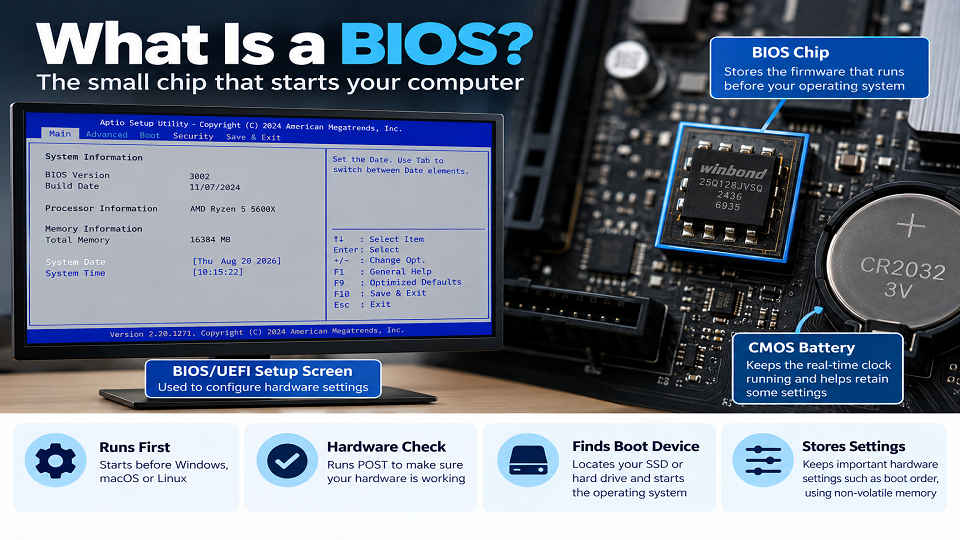
Short answer to what is a BIOS: it’s Basic Input/Output System – a small piece of firmware sitting on your motherboard that runs before your operating system even wakes up. It checks your hardware’s working, then hands things over to Windows, macOS, or Linux. Most modern PCs use UEFI rather than the original BIOS, although people still commonly call the firmware setup screen “BIOS.”
That covers the short version. Stick around if you’re chasing a BIOS update, trying to change a boot setting, or just curious what that black screen with white text actually does – including one risk that almost nothing written about this topic bothers to mention.
So, What Is a BIOS, Really?
It’s the very first piece of software your computer runs – before Windows, before your desktop, before anything you’d actually recognize as “your computer.” It lives on a small chip on the motherboard, entirely separate from your hard drive or SSD, which is exactly why it still works even when your storage drive dies or your OS won’t boot.
The BIOS concept dates back to early microcomputer systems, and IBM’s 1981 PC helped establish BIOS as a standard part of the IBM-compatible PC ecosystem. Modern computers have largely moved to UEFI, but the term “BIOS” is still commonly used for the firmware setup interface.
What Does It Actually Do?
Press the power button, and before anything else happens, your BIOS runs through a short checklist.
First comes POST – Power-On Self-Test – which confirms your CPU, RAM, and other core hardware are physically present and responding the way they should. Those beep codes or blinking error lights you sometimes hear about? That’s POST catching a problem. It runs regardless of whether an operating system is even installed, since its entire job is confirming the hardware works before anything else gets handed off.
Once POST clears, the BIOS finds your boot device – usually your SSD or hard drive – and passes control over. From there, Windows or macOS takes it from here, and the BIOS’s job for that session is basically done until the next restart.
There’s also a small set of firmware settings that can remain stored when the PC is powered off. On many motherboards, a coin-cell battery helps keep the real-time clock running, while modern systems commonly store firmware settings in non-volatile memory. This is why your system can retain settings such as boot preferences even when the PC is turned off.
BIOS vs. UEFI: What’s Actually Different
Most PCs sold in the last decade technically run UEFI (Unified Extensible Firmware Interface) rather than classic BIOS, even though “BIOS” is still what everyone says out of habit – manufacturers included, who still print “Enter BIOS Setup” on startup screens that are actually UEFI underneath.
| Classic BIOS | UEFI | |
| Interface | Text-only, keyboard navigation | Graphical, often mouse-supported |
| Boot drive limit | Typically limited to MBR-based boot configurations | Supports large drives with GPT |
| Boot speed | Slower | Faster |
| Secure Boot support | No | Yes |
| Typical era | Older PC systems | Modern PC systems |
The practical difference, if you’re trying to tell them apart: colorful menus you can click through with a mouse means UEFI. Blue or black text navigated entirely with arrow keys means legacy BIOS. Either way, this guide – and basically everyone’s everyday conversation – treats the two terms interchangeably, and I’ll keep doing the same below.
How to Actually Get Into Your BIOS
The key depends on your motherboard or laptop’s manufacturer, and it only works during a brief window right after powering on, before Windows starts loading.
| Manufacturer | Common Key |
| Dell | F2 or F12 |
| HP | F10 or Esc |
| Lenovo | F1 or F2 |
| Asus | F2 or Delete |
| Acer | F2 or Delete |
| Custom-built PCs | Delete (most common) |
Didn’t work the first time? Tap the key repeatedly from the moment you hit power, rather than pressing once and waiting – that usually catches the window better. On Windows 11 machines with fast startup enabled, you may need to restart from inside Windows rather than a full shutdown, since fast startup can skip right past the BIOS prompt entirely.
Finding Your Way Around Once You’re In
Getting into the BIOS is one thing. Actually navigating it the first time can feel intimidating, especially on the older, text-only screens.
Classic BIOS is keyboard-only: arrow keys move between menu items, Enter selects or expands something, Esc backs you out of a submenu. UEFI systems usually support a mouse alongside the keyboard, and the menus tend to split into an “EZ Mode” – a simplified dashboard showing temperatures, boot order, and XMP toggles – and a fuller “Advanced Mode” underneath.
Many UEFI interfaces use F10 to save changes and exit, while Esc can back out of a menu or discard changes depending on the firmware. The exact keys vary by manufacturer, so check the on-screen instructions before saving or exiting. And don’t unplug the PC or force a restart while you’re still inside the menu – exit properly first, since an abrupt power loss here can cause problems.
What Is a BIOS Update, and Do You Actually Need One?
A BIOS update is a firmware upgrade released by your motherboard or laptop manufacturer. Depending on the device, it may be installed through the firmware’s built-in update tool, a manufacturer utility, or another update process provided by the manufacturer. In simple terms, it updates the code that runs before your operating system loads.
Manufacturers put these out for a handful of reasons: supporting CPUs that didn’t exist when the board first launched, patching security holes at the firmware level, fixing stability bugs, or occasionally smoothing out compatibility with specific RAM kits. None of that means you need to install one the moment a new version shows up.
A better rule is to update when you have a specific reason – a new CPU that needs support, a documented bug actually affecting you, or a security patch addressing something serious. Don’t update just because a newer version exists and a notification popped up. “If it isn’t broken” applies especially well here, because unlike a regular app update, a failed BIOS update carries real consequences.
Weighing the Trade-off
On the upside, a BIOS update can add support for newer CPUs on an older board, patch firmware-level security holes a normal Windows update can’t touch, fix stability bugs the manufacturer’s already identified, and sometimes improve compatibility with faster RAM kits.
On the downside, the update carries a small but genuine risk of failure if power gets interrupted mid-process – worst case, the motherboard won’t boot at all afterward. It also takes real time and focus to do safely, and honestly, if your system’s already stable, there’s no actual problem being solved. You’d be adding risk to fix something that was never broken in the first place.
Bottom line: a specific, documented reason makes the update worth the risk. Chasing version numbers alone doesn’t.
The Risk Almost Nobody Warns You About
This is the part most BIOS explainers skip entirely, and it matters more than anything else here.
Interrupt a BIOS update – a power cut, a laptop battery dying mid-flash, someone bumping the power cable – and there’s a real chance the motherboard won’t boot afterward. Since the BIOS is what your PC uses to start up in the first place, a corrupted one can leave you with a completely dead machine, unable to even reach a boot screen, let alone Windows. Some systems include firmware recovery features that can help recover from a failed update, but you should never assume your device has one. Check the manufacturer’s documentation before updating.
Some newer boards include a backup BIOS chip or a recovery mode specifically to guard against this. Plenty of budget boards and most laptops don’t, so it’s worth checking your specific model’s recovery options before you start an update, not after something goes wrong.
The practical takeaway: updating a desktop, use a UPS or at minimum the original power cable, plugged directly into the wall. Laptop? Make sure the battery is sufficiently charged and keep the laptop connected to its charger throughout the update. Follow the manufacturer’s update instructions carefully, and never restart or power off the computer manually while the firmware update is in progress – even if it appears to take longer than expected.
Settings Worth Knowing Once You’re In There
Most people never touch their BIOS after initial setup, but a few settings come up often enough to be worth knowing.
Boot order decides which drive your PC tries first – useful when installing an OS from USB, since you’ll need to temporarily bump it above your main drive in the list.
XMP and AMD EXPO are memory profiles that can let compatible RAM run at higher, manufacturer-rated settings instead of the system’s default settings. RAM sold as “6000MHz” often runs noticeably slower out of the box until this gets manually switched on. Intel keeps an official list of XMP-certified memory if you want to confirm your kit qualifies before flipping it on.
Secure Boot is a UEFI security feature that helps prevent unauthorized software from loading during startup. Windows 11 requires UEFI firmware that is Secure Boot capable and Secure Boot is recommended for stronger startup security. Microsoft’s own Secure Boot guidance explains how to check whether it’s enabled. In some situations, such as using certain older boot tools or Linux configurations, you may need to change Secure Boot settings temporarily.
Frequently Asked Questions
Is BIOS the same thing as UEFI?
Not technically, but they do the same job. UEFI is the modern replacement, with a graphical interface and support for larger drives. Most people still call it “BIOS” regardless of which one their PC actually runs.
How do I know if I need a BIOS update?
Only with a specific reason – a new CPU your board doesn’t support yet, a documented bug you’re actually running into, or a critical security patch. Updating without a reason adds risk without a matching benefit.
What happens if my BIOS update fails?
Worst case, the motherboard won’t boot at all. Rare when the update completes normally, but the odds climb fast if power gets interrupted partway through – which is exactly why a stable power source matters more here than for almost any other kind of software update.
Can I use my computer without a BIOS?
No. It’s required just to start at all – it’s what tests your hardware and hands control to your operating system every single time you power on.
Final Thoughts
BIOS is one of those things most people never think about until something goes wrong – a new build, a stubborn boot order, or an update that suddenly feels urgent. The core idea’s simple enough: it’s the first thing that runs, it checks your hardware, and it hands things off to your OS. Everything else here is detail you only need once you actually need it.
If you’re already deep in a PC-building or upgrading mood, our guide on how to check your motherboard model is the natural next step – you’ll need that model number before hunting down the right BIOS update file anyway. Our Tech Guides section cover more hardware topics in the same vein.




1 comment