
If you want to know how to clear cache on Android, you are in the right place. I feel a bit embarrassed admitting this – I didn’t clear my Android’s cache for almost a whole year. I didn’t even know that doing so was necessary. My Redmi was running very slowly; WhatsApp would freeze in the middle of conversations, and almost every video on YouTube was buffering. I looked everything up on Google. Was the battery bad? Checked it. A virus? Ran a scan. Too many apps? Deleted half of them. But nothing worked.
My neighbor – who works as a phone repairman – came over one evening and fixed my problem in less than two minutes. He simply cleared the cache. I felt relieved, yet a bit awkward too.
If your phone is doing the same thing right now, this is the way to go.
Quick fix: Settings → Apps → Select App → Storage → Clear Cache. It takes less than 30 seconds. Want a complete guide covering all the methods? Keep reading.
I still remember when my Redmi Note became so slow that it took nearly 40 seconds just to open WhatsApp. My cousin suggested clearing the cache. I was a bit skeptical – but it worked wonders in just a few minutes.
What Exactly Is Cache – And Why Does It Slow Your Phone Down?
Alright, before we get into the actual steps, let me explain what “cache” actually is-because, to be honest, hardly anyone explains it properly, and it’s really important.
Whenever you open an app or load a website, your phone quietly saves small bits of data in the background. Images, login details, layout files-all of this gets stored locally so that things load faster the next time around. Smart, isn’t it?
The problem is that this data never actually cleans itself up. Old files accumulate, legacy data conflicts with app updates, and before you know it, gigabytes of digital clutter-which is no longer needed-pile up on your phone. This is precisely what slows your device down.
Here is the right way to fix this.
Method 1 – How to Clear Cache on Android Apps (The most effective method)
The most effective way to clear cache on Android is through individual app settings.
To be honest, this changed everything for me. Most guides simply say to clear the Chrome cache and you’re done – but that doesn’t really make much of a difference. The real difference comes when you fix each app individually.
Steps to clear app cache on Android:
- Open Settings on your Android phone.
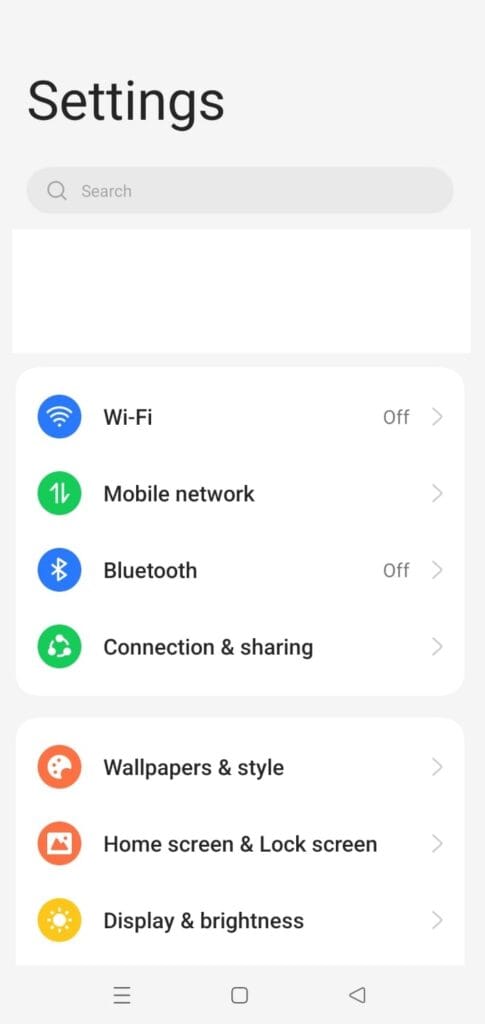
2. Scroll down and tap on Apps (on some phones, this is labelled as Applications or App Manager).
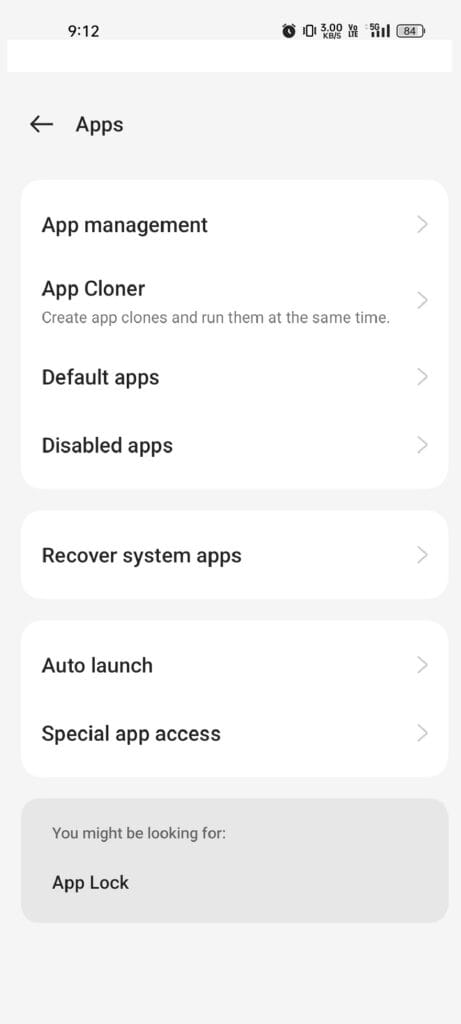
- You will see a list of all installed apps – tap on the app that is causing the issue
- Tap on Storage & Cache (in older Android versions, this is labelled simply as Storage)
- Tap on Clear Cache
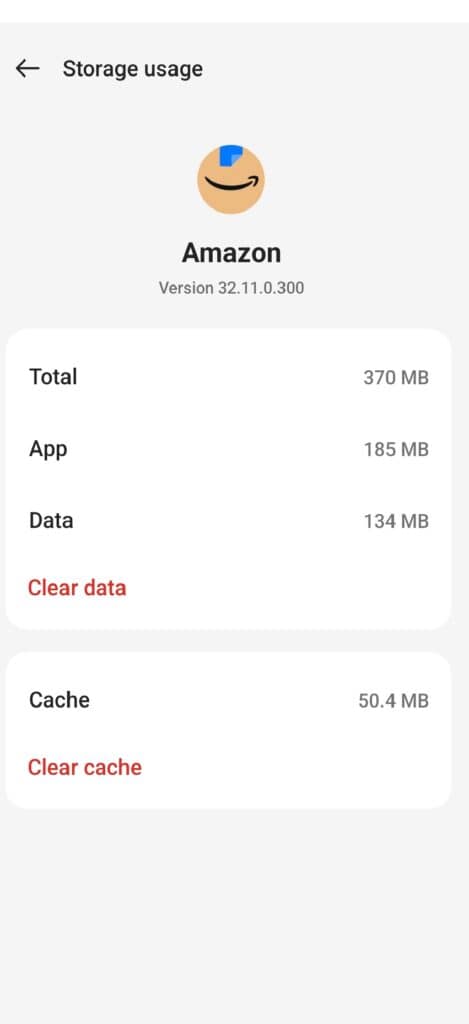
6. That’s it
Which apps should you clear the cache for first?
In my experience, these five apps accumulate the most cache and slow down the phone the most:
- WhatsApp – accumulates a huge amount of media cache
- Instagram – caches every video and image you scroll through
- Chrome – accumulates cache very quickly due to daily browsing
- YouTube – video cache can reach several gigabytes
- Snapchat – one of the worst apps when it comes to accumulating cache
Start with these five apps, and you will notice an immediate difference.
Pro tip: You can use Google’s free tool, ‘Files by Google’ . It automatically identifies junk files and cache across all your apps and lets you remove them with a single tap. Before deleting anything, it clearly shows you how much space you will reclaim.
For example, last month, my WhatsApp alone was consuming over 1.2 GB of cache. I discovered this when only 2 GB of space remained on my phone’s 64 GB storage – even though I had already deleted most of my photos. I was surprised when I checked the storage usage of individual apps; WhatsApp’s cache was the main culprit. After clearing it, I instantly regained about 1 GB of space without deleting a single chat or photo. If you use WhatsApp heavily – and almost everyone in India does – taking just this one step will make a significant difference.
Method 2 – How to clear cache on the Android Chrome browser
Chrome quietly accumulates a large amount of data. If your websites look broken or take a long time to load, this is likely the reason. Here is how to clear it:
- Open Chrome on your Android phone
- Tap the three dots in the top-right corner
- Tap on ‘History’
- Tap on ‘Clear browsing data’
- Set the time range to ‘All time’ to clear everything
- Select ‘Cached images and files’
- You can also select ‘Cookies and site data’ if you wish (Note: This will log you out of websites)
- Tap on ‘Clear data’
Important note: Clearing cached images and files will not delete your bookmarks, saved passwords, or browsing history unless you specifically select those boxes. You have full control over what gets deleted.
If you use a different browser, the process is similar – check Settings → Privacy → Clear browsing data in Firefox, Opera, or Brave.
Method 3 – Clear the cache for all apps at once (Android 13 and later versions)
Wait – can you really clear everything at once? Yes; most people aren’t even aware that such a thing exists. Here is how to do it:
- Open Settings
- Tap on Storage
- Tap on Cached data (if you see this option)
- Tap OK to confirm
Note: This option is available on some Android versions and devices from certain manufacturers, but not all. If you do not see ‘Cached data’ in your storage settings, use ‘Method 1’ for individual apps or use the ‘Files by Google’ app mentioned above.
Method 4 – Use SD Maid to deeply clear hidden cache
No one talks about this. And it’s surprising, because this is exactly what affected my phone the most.
SD Maid 2/SE is a free Android cleaning app that works much more thoroughly than the standard cache-clearing method. It hunts down orphaned files, leftover data from uninstalled apps, and hidden cache that the standard method completely overlooks.
How to use it:
- Download SD Maid 2/SE from the Play Store (free, no ads).
- Open the app and tap on CorpseFinder – it finds leftover files from deleted apps.
- Tap on AppCleaner – it finds hidden cache that doesn’t show up in Settings.
- Review the findings and tap Delete.
When I used it for the first time, I found over 800MB of hidden cache on my phone – files that hadn’t been removed even after clearing the cache via Settings.
Some other reliable free tools worth trying:
- Cacheberry – simple, fast, and free of bloatware
- Alpha Coder’s Phone Cleaner – good for quick daily maintenance
Keep one thing in mind – stay away from any app that claims to increase your RAM or boost your phone’s speed by 200%. It’s a scam. Every single time. These are almost always scamware. Stick to the tools mentioned above – they clearly state what they are deleting and why.
For example, a few months ago, I uninstalled about 15 apps while cleaning up my phone. I thought I was done, but there was no significant change in my storage space, which left me puzzled. Then, I ran SD Maid for the first time and discovered that those 15 uninstalled apps had left behind over 600MB of ‘orphaned cache’ and residual files. The apps were gone, but their data was still taking up space on my phone. SD Maid located and deleted every single one of those files in less than two minutes. Since then, I have been using it every month.
Method 5 – Clearing System Cache via Recovery Mode (Advanced)
Okay, this might look scary. But I promise it isn’t. This is for when nothing else works and your phone still isn’t functioning properly. It clears the system-level cache partition, not just the cache for individual apps.
Warning: This process might look intimidating, but it is completely safe. It does not delete your personal data, photos, or apps; it only removes temporary system files.
General steps (may vary depending on the device):
- Completely turn off (power off) your Android phone.
- Press and hold the Volume Up and Power buttons simultaneously (on most Android phones).
- Keep holding them until the Recovery Mode screen appears.
- Use the Volume Down button to navigate to ‘Wipe Cache Partition‘.
- Press the Power button to confirm.
- Wait for the process to complete.
- Select ‘Reboot System Now’.
Note: The button combination may vary depending on the manufacturer. For Samsung, it is typically ‘Volume Up + Bixby + Power’. For OnePlus, it is ‘Volume Up + Power’. If you are unsure, search for “recovery mode + your phone model” to find the correct steps.
How often should you clear the cache on Android?
Everyone asks me that. Short answer – not that often. Here is my honest answer:
Knowing how to clear cache on your Android phone regularly keeps it running smoothly.
To be honest? I do this when my phone starts acting up. Usually, that happens every 2 – 3 months. If you’re constantly on Instagram, YouTube, or gaming apps, it would be better to do it once a month. But there’s no hard and fast rule; your phone will let you know when it needs it.
If you see any of this, drop everything else and clear your cache:
- Apps suddenly crashing or freezing
- The phone running much slower than usual
- Low storage space
- A specific app behaving strangely after an update
- The phone getting unusually hot
You don’t need to clear the cache every day. Some apps, like YouTube and Instagram, actually perform poorly immediately after the cache is cleared because they have to rebuild it. Give them a day to rebuild it before evaluating the results.
Read Also >>> How to Turn Off 5G on iPhone and Android
Will clearing the cache delete my data?
Everyone worries about this. The answer is ‘no’ – but let me quickly clarify one thing.
Simply put – your data will remain safe. Photos, chats, contacts, passwords – none of these will be affected.
Just keep one thing in mind: there is a ‘Clear Data’ button right next to ‘Clear Cache’. Clicking it will completely reset the app – making it look as if you’ve just installed it for the first time. Do not press that button unless you actually want to start using the app from scratch.
Clear Cache = Safe. Clear Data = Major change (everything gets wiped). That’s all there is to it.
Always tap ‘Clear Cache’ – not ‘Clear Data’ – unless you have a specific reason to use ‘Clear Data’.
FAQ
Why does my phone slow down again after clearing the cache?
Because when you use apps, your phone generates this again - that’s just how it works. Think of it like dust settling in your home. You clean it up, life goes on, and the dust returns. You clean it again. It’s a matter of maintenance, not a one-time fix. It is completely normal.
How do I clear the cache on a Samsung Galaxy phone?
Simply follow the steps mentioned above: Settings → Apps → Select App → Storage → Clear Cache. However, a benefit of using Samsung devices is the built-in ‘Device Care’ tool in the settings. This allows you to clear the cache for multiple apps at once – a very useful feature.
Is it safe to clear the cache on Android every day?
Is it safe? Yes. Is it necessary? Absolutely not. Doing every day is like mopping the floor every hour – the floor doesn’t get dirty that quickly. Honestly, for most people, doing it once every 2–3 months is enough.
What is the difference between cache and cookies?
Think of the cache as your phone saving shortcuts - such as images, layouts, and data - so that things load faster. Websites use cookies to remember you - like your login details, preferences, and so on. Clearing the cache helps apps run better. Clearing cookies means you will have to log in again to everything. These are two completely different things.
Final Word:
You see, I spent a long time thinking my phone was just getting old. In reality, it just needed a five-minute cleanup. Now that you know exactly how to clear cache on Android…
Start with the first method – choose WhatsApp or Instagram, clear the cache, and see how it goes. You don’t need to try all five methods today; just start with one.
And if you want to dig deeper, SD Maid will truly surprise you with the sheer amount of hidden junk data it uncovers.
Check out TechExploria.com for more Android tips and honest reviews of AI tools – and feel free to ask your questions in the comments below. I read every single one.





1 comment