Finding the best mouse for work isn’t about the highest spec sheet – it’s about what survives eight-plus hours a day without annoying you or the people around you. I’ve gone through four mice at my own desk over the last two years – one died mid-call during a client presentation (RIP, unnamed budget brand), one gave me wrist pain I didn’t take seriously until it started waking me up at night. So this list isn’t built off spec sheets alone; it’s built off what actually breaks, annoys, or quietly saves your day when you’re using a mouse for eight-plus hours, five days a week.
Short version, if you’re in a hurry:
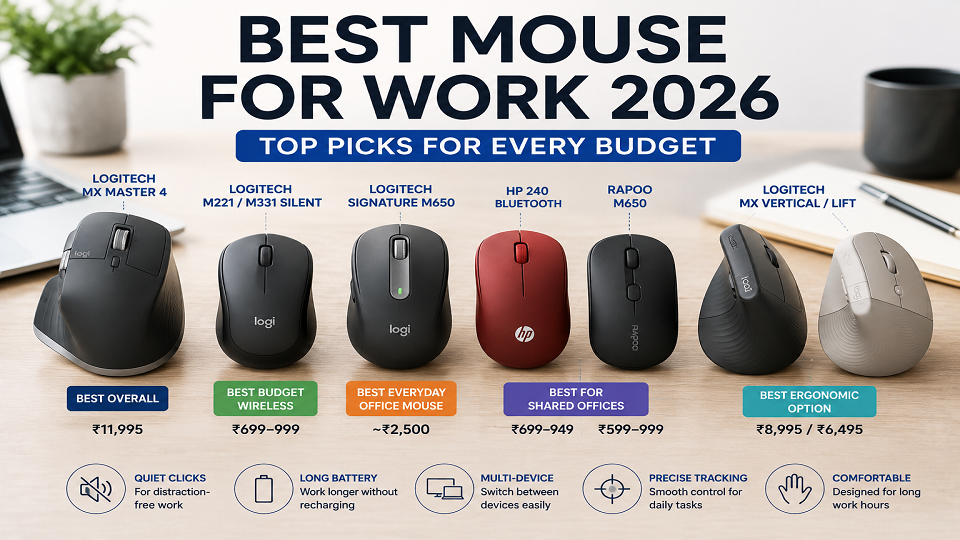
- Best overall (money no object): Logitech MX Master 4 – ₹11,995
- Best budget wireless: Logitech M221 / M331 Silent – ₹699–999
- Best everyday office mouse: Logitech Signature M650 – around ₹2,500
Keep reading for the reasoning, plus a few options most “best mouse” lists skip because they’re written with gaming rigs or US pricing in mind, not an Indian WFH desk or a shared office in Gurgaon.
How We Chose These Mice
We focused on the things that matter during a normal workday rather than gaming specifications: click noise, connection options, scrolling, comfort, battery or charging convenience, multi-device features and price.
Product specifications were checked against manufacturer information, while prices are treated as approximate because Indian retail prices change frequently.
Where a mouse wasn’t personally tested by our team, we haven’t described it as hands-on tested. Personal experience is mentioned only where the writer has actually used the product.
What Matters for Office Work (Not Gaming)?
Most mouse reviews online are written by people benchmarking for competitive gaming – 8,000Hz polling, 40,000 DPI sensors, RGB. None of that helps you get through a spreadsheet faster. What actually matters when you’re using a mouse for work:
Click noise. If you’re in an open office, on video calls all day, or working late next to someone asleep, loud clicks get old fast – and people notice on calls more than you’d think.
How it’s powered. Nobody wants to hunt for a charging cable mid-deadline. Though, oddly, a mouse that takes a plain AA battery can be more convenient than a rechargeable one if your area gets frequent power cuts – you’re never stuck waiting for a charge that can’t happen.
Bluetooth vs. USB dongle. If you’re on an older desktop without built-in Bluetooth, you need the dongle. Skip this check and you’ll find out the hard way.
Multi-device switching. Worth paying for if you regularly bounce between a laptop and a desktop, which describes a lot of hybrid setups right now.
DPI barely matters here. You don’t need an extremely high DPI setting for normal office work. A moderate sensitivity setting is usually enough for browsing, spreadsheets and documents, although the ideal setting depends on your screen size and personal preference.
Best Overall: Logitech MX Master 4 (₹11,995)
This is the one I use daily, and it’s the priciest mouse on this list for a reason. The sensor can be set as high as 8,000 DPI, although you won’t need anything close to that for normal office work. The MagSpeed wheel free-spins when you flick it hard, which – once you get used to it – makes scrolling through a long doc feel almost instant.
The feature that actually earns its price tag, though, is Logitech Flow. It lets your cursor move across two connected computers like they’re one screen, and you can copy-paste text or files between them. If you’ve got a work laptop and a personal desktop side by side, this alone saves a surprising amount of friction – I stopped emailing myself files between machines the week I set it up. (Pairing it with a compact keyboard on the same desk? Our best keyboards for a hybrid desk guide covers a few that support the same multi-device switching.)
Best Budget Wireless Mouse: Logitech M221 / M331 Silent (₹699-999)
If ₹12,000 sounds excessive for a mouse, the M221 and M331 Silent make much more sense for basic office work. They’re simple mice, but that’s also their appeal: quiet clicks, straightforward wireless connectivity and no unnecessary software to learn.
Both cut click noise by around 90% compared to a standard mouse, run a 1,000 DPI sensor (plenty for office work), and connect via a 2.4GHz USB dongle rather than Bluetooth – handy for older desktops.
The catch: they run on a single AA battery instead of USB charging. Depending on your situation, that’s either a downside or a quiet upside – replacing a battery takes seconds, so you don’t have to wait for the mouse to recharge during a busy workday.
Best for Shared Offices: HP 240 or Rapoo M650
If silence is genuinely your top priority, both the HP 240 Bluetooth Wireless Mouse (₹699–949) and the Rapoo M650 (around ₹599, often on sale from ₹999) are solid. The HP 240 pairs directly over Bluetooth, so there’s no small dongle to lose – a real problem if you’ve ever cleaned your bag and found a mystery USB receiver with no idea which device it belonged to.
The Rapoo M650 also supports multi-device Bluetooth switching, making it an interesting lower-cost alternative if you don’t need the extra features of the Signature M650.
Best Everyday Office Mouse: Logitech Signature M650 (~₹2,500)
This one sits in the middle – comfortable, quiet and simpler than Logitech’s premium productivity mice. Its SmartWheel can switch between precise line-by-line scrolling and faster scrolling with a flick, while SilentTouch keeps clicking relatively quiet. You can connect it through Bluetooth or Logitech’s Logi Bolt receiver, making it a practical everyday option for work without paying for the extra features of the MX Master range.
Best for Long Hours / Wrist Strain: Logitech MX Vertical or Lift
I switched to a vertical mouse after ignoring wrist soreness for close to a year – don’t do that. The MX Vertical uses a 57-degree design intended to place the hand in a more natural handshake position. The Lift uses a similar vertical approach in a smaller body. Neither will feel natural immediately if you’re used to a conventional mouse, so give yourself some time to adjust.
The Logitech Lift is smaller, lighter, and cheaper, with a gentler version of the same angle – and it comes in a size made for smaller hands, which most vertical mice don’t bother offering.
Best Ultra-Budget Option: Zebronics or Portronics
Below ₹700, choices thin out. Zebronics (the Zeb-Transformer and similar) and Portronics’ Toad series are the two Indian brands that consistently show up in this range, usually ₹450–700. Don’t expect silent clicks or great build quality – DPI is often fixed or limited to 2–3 presets, and battery life is shorter than the pricier options above. What you get is a functional, plug-and-play mouse for a student desk or as a backup – nothing more, but nothing pretending to be more either.
Compare at a Glance
| Mouse | Best For | Price (₹) | Connectivity | Battery | DPI Range | Click Noise |
| Logitech MX Master 4 | Overall / power users | 11,995 | Bluetooth + Bolt receiver | Rechargeable, ~70 days | Up to 8,000 | Standard |
| Logitech M221 / M331 Silent | Budget wireless | 699-999 | 2.4GHz USB dongle | 1x AA, ~18 months | Up to 1,000 | ~90% quieter |
| HP 240 | Shared / silent office | 699-949 | Bluetooth only | 1x AA, ~15 months | Up to 1,600 | Standard |
| Rapoo M650 | Shared office, multi-device budget | ~599-999 | Bluetooth (3-device) | 1x AA | – | Silent |
| Logitech Signature M650 | Everyday office use | ~2,500 | Bluetooth + Logi Bolt | 1x AA, up to 24 months | 400–4,000 | ~90% quieter |
| Logitech MX Vertical | Wrist strain / ergonomics | – | Bluetooth + receiver | Rechargeable | Adjustable | Standard |
| Logitech Lift | Wrist strain, smaller hands | – | Bluetooth (3-device) | 1x AA, up to 24 months | Adjustable | Quiet |
| Zebronics / Portronics | Ultra-budget / backup | 450-700 | USB dongle | Varies | 2-3 fixed presets | Standard |
MX Vertical and Lift India pricing varies by retailer – check current listings before publishing.
How to Pick the Right Mouse for Work?
Start with where you work. Shared office or someone asleep nearby? Go straight to the M221/M331, HP 240, or MX Master 4 – silence isn’t optional there. Older desktop with no Bluetooth? You need a dongle option, which rules out Bluetooth-only picks like the HP 240.
Frequent power cuts genuinely tip the scale toward a AA-battery mouse over a rechargeable one – you’re never left waiting on a charge that can’t happen yet.
If you split time between a laptop and desktop, multi-device switching on the MX Master 4 or Rapoo M650 can save more daily annoyance than any number on a spec sheet. And if your wrist has already started complaining after long days, that’s the one case where paying extra for a vertical mouse is worth it – the adjustment period is real, but so is the difference.
Mistakes I See People Make
Buying a gaming mouse for office work. A high DPI number looks impressive on the box, but it does nothing for spreadsheets – and usually just means extra weight and RGB lighting you’ll turn off within a week anyway.
Not checking connectivity before buying. Bluetooth-only mouse, desktop with no Bluetooth. Dongle-only mouse, laptop with two USB ports you already need for other things. Check your setup before you check the price. (Our Bluetooth vs. dongle explainer breaks down which to pick for older desktops.)
Forgetting to check left-hand availability. Most ergonomic and vertical mice – including the MX Vertical – are right-hand only. Worth confirming before you buy, not after it arrives.
Common Questions About Work Mice
Is wireless actually better than wired for work?
For most office setups, yes - one less cable on the desk, and modern 2.4GHz/Bluetooth connections don’t introduce noticeable lag for typing or browsing. Wired still edges out wireless for competitive gaming, but that’s not what this list is for.
Do I need high DPI for office work?
No. 1,000-1,600 DPI covers spreadsheets, browsing, and document editing comfortably. Anything higher is a gaming spec that doesn’t translate into a better work experience.
How long do these actually last on a charge or battery?
Battery life varies by model. AA-powered mice such as the M221/M331 and Signature M650 can run for many months, while rechargeable models such as the MX Master 4 need periodic charging. Logitech rates the MX Master 4 for up to 70 days on a full charge, although actual battery life depends on usage.
Is an ergonomic mouse worth it if my wrist doesn’t hurt yet?
Not urgently. If a standard mouse feels fine, there’s no need to switch pre-emptively. It’s worth considering once you start noticing fatigue after long sessions - adjusting early is a lot easier than adjusting after strain has already set in.
Final Thoughts
There’s no single best mouse for work – there’s a best mouse for your setup, and that comes down to where you work, what you’re plugging it into, and how many devices you’re juggling in a day. Start with the budget silent picks if you just need something that works reliably. Move up to the MX Master 4 or a vertical mouse only once you know exactly which problem you’re solving.
Setting up a full WFH desk? Our Tech Guides section and Gadgets category cover the rest of the accessories worth getting right – monitors, keyboards, and the stuff people usually get wrong the first time.