What Is a Checksum Error? Complete Causes and Fixes (2026)
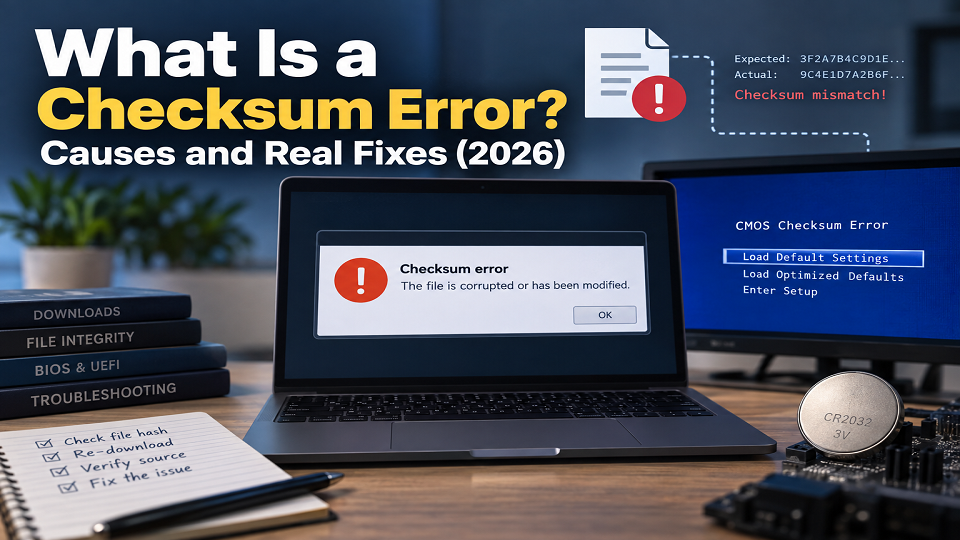
In simple terms, a checksum error means the data you have doesn’t match the checksum it was supposed to have. That can happen because a file was corrupted, a download went wrong, or something changed along the way. Maybe it’s a downloaded file, an extracted archive, or your motherboard’s saved settings – whatever it is, it came out different from what it should’ve been. Not a virus warning by itself. Not always serious, either. But it does mean something changed somewhere along the way, and that’s not something to just wave off.
That’s what is a checksum error, in one breath. What follows covers the two genuinely different situations where this actually shows up, a way to check for yourself whether a file’s really corrupted, and what fixes each version – because a bad download and a BIOS checksum error don’t share a single thing in common when it comes to fixing them.
Before the Error: What’s a Checksum, Actually
Run a file through a mathematical formula and you get a short string of letters and numbers back – a short value that can be used to check whether the data matches the expected version. Even a small change in the data can change the checksum, although exactly how much it changes depends on the algorithm.
Here’s where it gets used: a file gets created or uploaded somewhere, its checksum gets calculated and published right alongside it. You download the file, and your system can run that same calculation again on your copy. Match, and the file arrived exactly as intended. No match, and something shifted between the source and your device – a checksum error is just your system flagging that shift.
Two Very Different Errors Share This One Name
Most writing on this topic lumps two unrelated problems together under one label, which is exactly why the fixes end up sounding confusing. Worth pulling apart properly.
One version shows up during downloads, archive extraction, file transfers – the checksum your system calculates doesn’t match what the source expected. WinRAR and 7-Zip both check this automatically while extracting and flag it the moment something’s off.
The other type appears during startup, before Windows loads, when the system detects a problem with stored firmware configuration data. This is different from a file checksum mismatch and requires a different troubleshooting approach.
If you’re seeing a BIOS or CMOS checksum error, start by loading the BIOS/UEFI default settings and checking whether the problem returns. A weak CMOS battery can cause settings to be lost or reset on some systems, but firmware or configuration problems can have other causes as well. If the error continues, check your motherboard or computer manufacturer’s troubleshooting instructions. Our guide to what a BIOS actually is explains the firmware side in more detail.
File Checksum Error vs. BIOS Checksum Error
| Type | Usually appears | What it means | First step |
| File checksum error | During download/extraction | File data doesn’t match the expected checksum | Re-download and verify the hash |
| BIOS/CMOS checksum error | During startup | Firmware configuration/check data has a problem | Load BIOS defaults and check battery/settings |
Why File Checksum Errors Happen in the First Place
Once you understand what is a checksum error at a basic level, the causes make a lot more sense. A handful of things reliably cause this, and none of them require jumping straight to the worst-case scenario.
One of the first things to check is the download itself. If the connection dropped or the download didn’t complete properly, the file may be corrupted. Drop or slow mid-download, and the file can end up incomplete or corrupted in sections, even while the download bar shows “complete.” A failing or aging hard drive can quietly corrupt data as it writes, which explains why checksum errors sometimes appear on files that downloaded fine months ago and only fail now that you’re actually using them. Software bugs – in the download manager, the browser, the compression tool – occasionally write files wrong even over a flawless connection. And yes, tampering happens too. Malware alters files sometimes, which is precisely why checksum verification exists as a security practice, not just a technical footnote.
Checking a File’s Checksum, Yourself
Most guides skip this part entirely, and it’s honestly the most useful thing here if you’re trying to confirm a download is actually safe.
Windows: open Command Prompt and run
certutil -hashfile “C:\path\to\your\file.zip” SHA256
Swap in your actual file path. Built into Windows already – Microsoft documents certutil as one of its standard command-line tools, so nothing extra to install. Out comes a long string of letters and numbers. Compare it against the checksum published on the site you downloaded from – usually provided as a SHA-256 hash or another algorithm specified by the publisher. Match exactly, and the file’s intact. Off by even one character, and something changed.
Mac or Linux: shasum -a 256 /path/to/file does the same job from the terminal.
No published checksum anywhere on the download page? Worth noting on its own – legitimate software from established publishers usually provides one, especially for anything security-sensitive.
Actually Fixing a File or Download Checksum Error
Simplest explanation first, before assuming the worst. Re-download from the same source – a fresh attempt clears up the majority of these, since the original cause was usually just a connection hiccup rather than a genuinely broken source file.
Fails a second time? Try a different network if that’s an option – switching Wi-Fi for a wired connection, or trying an entirely different network, rules out a local connection issue. A mirror or alternate host, if the publisher offers one, helps separate whether the problem’s on your end or theirs.
Archive files specifically: WinRAR and 7-Zip sometimes offer a partial or repaired extraction even with a checksum mismatch, though treat anything pulled out this way carefully – a partial extraction from a corrupted archive isn’t the same guarantee as a clean one.
Windows itself seems to be the common thread across repeated corruption issues, rather than any single download? Microsoft’s built-in System File Checker tool – sfc /scannow from an administrator Command Prompt – can catch and repair damaged system files contributing to the pattern.
Should You Actually Worry About Security Here?
Now that you know what a checksum error actually signals, the security question becomes easier to answer. Usually not, though it’s worth knowing why this deserves a check rather than a shrug.
A mismatch on its own doesn’t prove malware – a flaky connection causes far more of these than anything malicious ever does. What it does mean: you genuinely don’t know what’s sitting inside that file anymore, since it’s not the exact data the publisher meant for you to have. Run a program or open an archive that failed its checksum check, and you’re running something unverified. Usually that’s just a corrupted download. But it’s exactly the scenario checksum verification was built to catch.
Practical rule of thumb: low-stakes stuff, like a video file that won’t play smoothly – a checksum error probably just means re-download and move on. Anything you’re about to install and run with system permissions deserves the extra thirty seconds to verify the hash first, especially coming from anywhere other than the official source.
Frequently Asked Questions
Does this always mean a virus?
No, and it’s not even close. Most trace back to an unstable connection or a failing drive, not malware. Still means the file shouldn’t be trusted until it’s re-verified, though.
How do I check a checksum on Windows without installing anything?
Command Prompt, then certutil -hashfile “path\to\file” SHA256. Compare what comes out against the checksum published by the file’s source.
Is a BIOS checksum error the same as a file checksum error?
Not even related, despite the shared name. BIOS checksum errors happen at startup, usually when the system detects a problem with stored firmware configuration or checksum data. A weak CMOS battery can be one possible cause, but it isn’t the only one.
Does re-downloading actually fix it?
It can, particularly when the original download was incomplete or corrupted. If the checksum mismatch happens again, try another network or check whether the publisher provides an alternate download.
Final Thoughts
A checksum error is really just your system doing its job – catching a mismatch before you end up trusting data that isn’t quite what it claims to be. More often than not, that mismatch traces back to something as ordinary as a dropped connection, and a re-download sorts it out completely. The habit worth keeping: don’t ignore the warning, verify when it genuinely matters, and know which of the two completely different checksum errors you’re actually dealing with before diving into fixes.
If this sent you down a BIOS-specific rabbit hole, our guides on what a BIOS actually is and how to check your motherboard model go deeper on the hardware side.
Have questions about how we cover PC troubleshooting topics? Check our contact us directly.



1 comment