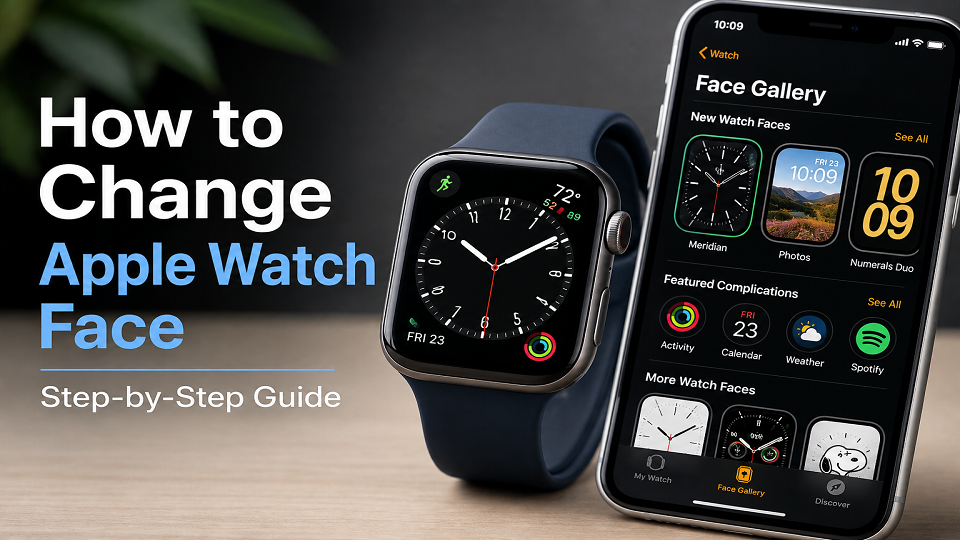
Touch and hold your current watch face. Wait for it to shrink toward the center. Swipe until you find the one you want, tap it, and you’re done. That’s the short answer to how to change apple watch face – assuming it’s already saved in your collection.
Want to add something new, though – a face you haven’t used before, a photo, a different set of complications? That takes going through the Watch app on your iPhone instead, and it’s where most people get a little lost. So that’s what this guide actually covers: not just the swap, but the stuff around it – photos that won’t sync, faces that vanish overnight, why your battery suddenly feels like it’s draining faster than it used to.
What You Actually Need First
Your Apple Watch should be paired with your iPhone, and you’ll need the Watch app for adding and customizing faces. Keeping both devices updated is also recommended because some watch faces and features depend on your Apple Watch model and watchOS version.
If your iPhone and Apple Watch aren’t communicating properly, Apple’s pairing guide can help you reconnect them.
Keep in mind that available watch faces and customization options can vary by Apple Watch model, watchOS version, and region. If you don’t see a particular face or feature, check whether your watch supports it and whether the latest compatible software is installed.
How to Change Watch Face on Apple Watch: Switching What’s Already Saved
This is the fast path, and it only works for faces already sitting in your collection.
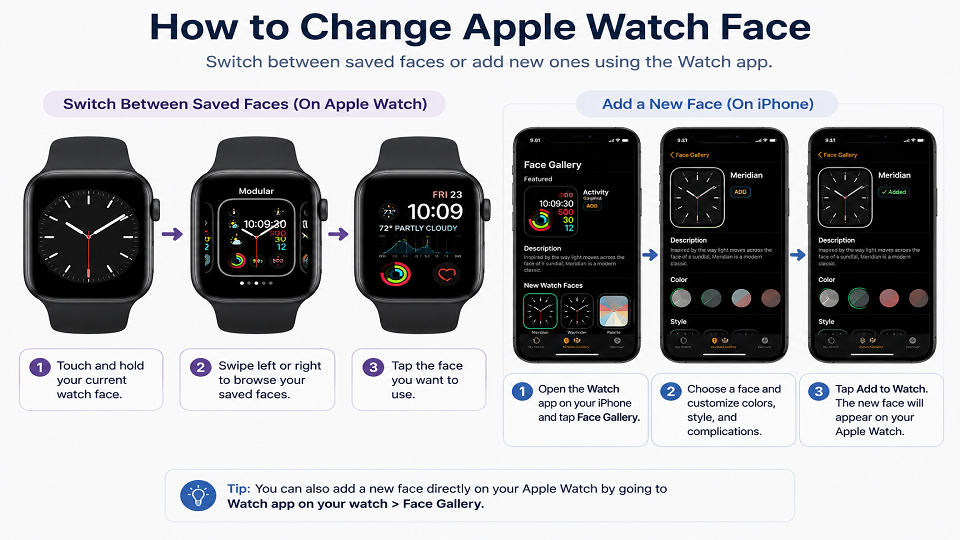
Raise your wrist. Touch and hold the display until the current face shrinks. Swipe left or right – your saved faces will scroll past – and tap whichever one you want.
There’s a shortcut around even the touch-and-hold part. On the watch, go to Settings, then Clock, and switch on Swipe to Switch Watch Face. After that, a plain swipe does the job without you needing to hold anything first.
How to Change Face on Apple Watch: Adding Something New from Your iPhone
The quick swipe only cycles through what you’ve already got. New faces come from the Watch app.
Open it, tap Face Gallery, and you’ll land on a set of categories – Health & Fitness, Photos, Data Rich, a few others. Scroll to the bottom and tap See All Watch Faces if you want to see literally everything on offer rather than browsing by type. Tap a design to preview it, and play with the colors and layout options while watching the mock-up at the top update in real time. Once it looks the way you want, tap Add to Watch.
That’s it – the face lands in your collection and becomes active immediately. Apple keeps an updated list of every available face and what each one supports, and it’s genuinely worth a bookmark, since new designs tend to show up alongside most major watchOS releases.
Making a Face Actually Yours: Complications and Colors
Adding a face is the easy part. What makes it feel personal is what you put on it.
Complications are the small widgets scattered around a face – weather, activity rings, a compass, whatever’s useful to glance at. To change one, touch and hold your current face, tap Edit, then swipe left until you reach the complications screen. Tap a slot – the top-right corner, say – and turn the Digital Crown to scroll through what’s available for that spot. Press the Crown to lock it in, then tap the face to apply everything.
Apple documents the full range of supported complications somewhere on its site, and the list runs from obvious (calendar, battery percentage) to weirdly specific (tide charts, air quality index) depending on which face you’re working with. A number of third-party apps quietly add their own complications too, once you’ve installed them – worth checking if there’s an app you already open constantly.
Using a photo instead of a present design is its own path. Open the Watch app, go to Face Gallery, and pick Photos. From there, you can choose the photos you want to use and customize how they appear on the watch. Adjust how it displays – whether the time overlays the image or sits off to the side – then tap Add to Watch. If you’re already looking at one photo you like, there’s a faster route too: open it in Photos, tap share, scroll down, and choose Create Watch Face.
Cleaning Up a Messy Collection
Try enough faces over a few weeks and your collection turns into a graveyard of designs you tested once and forgot about.
Removing one is simple enough. Touch and hold the current face on your wrist, swipe over to the one you don’t want, swipe up on it, then tap the red Remove icon. Or handle it from your phone – Watch app, My Watch, My Faces, tap Edit, and tap the red icon next to whatever needs to go.
Reordering works about the same way. In the app: My Watch > My Faces, Edit, then drag things around until the order makes sense. On the watch: hold the display, hold again on a specific face, and drag.
The Problems Nobody Warns You About
Most articles on this topic stop right after “here’s how to add a face,” which skips past where people actually get stuck.
A shared watch face doesn’t show up in your collection. Check My Watch > My Faces first. If you received the face through a message, email or online link, open the shared face and tap Add. Some shared faces may also require a third-party app for their complications.
Certain faces or complications appear greyed out, like they’re taunting you. This is almost always a software version thing. Some faces and complications only exist from a particular watchOS release onward, and if your watch hasn’t updated past that point, they simply won’t be selectable. Settings > General > Software Update on the watch tells you where things stand.
Photos refuse to sync to your Photos face. This is often an iCloud delay rather than something broken – give it time on Wi-Fi, or force a refresh by reselecting your photo collection inside the Face Gallery.
If Swipe to Switch Watch Face is turned on, an accidental brush against your sleeve can switch the face without you realizing it. Turning that setting off and going back to touch-and-hold can help prevent accidental changes.
Battery draining noticeably faster than before. Faces with animation, live photos, or complications that refresh constantly do pull more power than a plain analog or digital layout. On a day where battery matters more than looks, switching to something simpler for a few hours genuinely helps.
A Few Third-Party Options Worth Knowing
Apple’s own Face Gallery isn’t the only source. A handful of App Store apps add designs you won’t find natively – themed collections, brand collaborations, deeper customization than Apple typically allows.
Facer has a large, community-driven library with a lot of room to tweak. Clockology sticks closer to analog and luxury-clock styles if that’s more your taste. Both install like any regular App Store app and slot their own option into the Watch app once you’ve got them running. As with any app touching your device this closely, a quick glance at reviews and requested permissions before installing isn’t a bad habit.
Frequently Asked Questions
How do I set my own photo as the watch face?
Watch app, Face Gallery, Photos category. Pick your images, tap Add to Watch, and it's live.
I saw a watch face somewhere online and can't find it on my own watch - why?
Probably a version mismatch. Some faces are locked to a particular watchOS release or watch model, so even with current software, older watch generations sometimes miss out.
Is it normal to want different faces for different parts of the day?
Very. Plenty of people keep something data-heavy for work hours and something stripped-down for the gym, switching with a swipe between the two rather than committing to just one.
Does switching faces actually affect battery life?
Switching between watch faces itself has little impact on battery life. However, some faces and complications may use more power depending on how frequently they update or use active features.
Where This Leaves You
Changing an Apple Watch face is a two-minute task once you know where the settings live – the harder part, if there is one, is deciding what actually belongs on it. A complication you’ll glance at without thinking, a photo that means something, two or three faces you rotate depending on the day rather than one you never touch again.
If you’re still setting up your watch for the first time, our Tech Guides section has more walkthroughs in the same vein, and our Gadgets category covers other devices worth knowing inside out, not just Apple Watch. We’re also putting together a guide on tracking sleep on Apple Watch, which tends to be the natural next stop once faces and complications are sorted out.
Have questions about how we cover Apple devices? Check our Editorial Policy or contact us directly.




1 comment