How to Turn Off 5G on iPhone and Android – Complete 2026 Guide
My phone was burning through its battery by noon every single day. I would unplug it fully charged at 8 AM and by 12:30 PM I was hunting for a charger. I blamed the apps, turned off background refresh, lowered the screen brightness – nothing worked.
Then I noticed the little 5G icon sitting in my status bar. I was in a part of the city where Jio’s 5G coverage is genuinely patchy – strong signal one block, nothing the next. My phone was doing what all phones do in weak 5G areas: constantly scanning, searching, connecting, dropping, and reconnecting. That cycle alone was chewing through my battery faster than anything else.
When to Use 5G vs 4G:
| Situation | Best Network | Why |
| Metro city center | 5G | Strong coverage, fast speeds |
| Suburban area | 4G LTE | More stable, better battery |
| Long commute/travel | 4G LTE | Saves battery significantly |
| Crowded event/concert | 4G LTE | Less congested network |
| Gaming/4K streaming | 5G | High speed needed |
| WhatsApp/Browsing | Either | No difference |
| Video calls | Either | Both work equally well |
| Downloading large files | 5G | Much faster speeds |
| Phone overheating | 4G LTE | Runs cooler |
| Battery below 20% | 4G LTE | Saves remaining battery |
On my test device, I noticed noticeably better battery life after switching from 5G to LTE in an area with inconsistent 5G coverage. Your results may vary depending on your carrier and location
If your phone is running hot, dying too fast, or dropping mobile data randomly – this guide is for you. I will walk you through exactly how to turn off 5G on iPhone and how to turn off 5G on Android, including Samsung, Redmi, OnePlus, and Google Pixel. No fluff, just the exact steps that worked on my own devices.
Quick Answer: On iPhone – Settings → Cellular → Cellular Data Options → Voice & Data → select LTE. On Android – Settings → Connections → Mobile Networks → Network Mode → select LTE/4G. Done in under 30 seconds.
iPhone vs Android 5G Settings:
| Step | iPhone | Android (Samsung) |
| Step 1 | Settings | Settings |
| Step 2 | Cellular | Connections |
| Step 3 | Cellular Data Options | Mobile Networks |
| Step 4 | Voice & Data | Network Mode |
| Step 5 | Select LTE | Select LTE/4G |
| Time Needed | 30 seconds | 30 seconds |
| Reversible | Yes | Yes |
| Affects Calls | No | No |
Why You Might Actually Want to Turn Off 5G
Before we get into the steps, here is something most guides skip entirely – understanding when turning off 5G actually makes sense for your situation.
The Battery Problem Nobody Talks About
In areas with weak or frequently changing 5G coverage, phones may consume more power because they repeatedly search for a stable signal. That is not controversial – it is just how the technology works. The real problem is not 5G itself but weak 5G coverage. When your phone is in an area where the 5G signal is inconsistent, it does not simply give up and fall back to 4G gracefully. It keeps trying. It keeps scanning. It keeps switching. Your battery takes the hit every single time.
This is especially relevant in India right now. Jio and Airtel have rolled out 5G in major cities but coverage is still uneven – strong in some neighborhoods, completely absent two streets over. If you live or work in a mixed-coverage area, your phone is likely doing this signal hunting all day without you realizing it.
In the US, the same issue exists outside major metro areas. Verizon’s and AT&T’s mmWave 5G is fast but has a notoriously short range – sometimes barely covering one city block.
When 4G Is Actually Faster
This sounds counterintuitive but it is true. In crowded areas – concerts, stadiums, busy railway stations – most phones are locked onto 5G. The network gets congested. Meanwhile, 4G in the same location often has more breathing room because devices have migrated away from it. Switching to 4G in these situations can actually give you faster, more stable data speeds.
I tested this personally at a crowded mall in Delhi where 5G was technically available. On 5G, pages took 4-5 seconds to load. The moment I switched to 4G LTE, it dropped to under a second. The 5G network was simply too congested.
Overheating Fix
5G chips run hotter than 4G chips. If your phone gets warm during regular use – not gaming, not streaming, just browsing – check whether you are connected to 5G in a weak coverage area. Disabling it often stops the overheating almost immediately.
How to Turn Off 5G on iPhone – Step by Step
All iPhone’s from the iPhone 12 on-wards support 5G. The steps are the same across iPhone 12, 13, 14, 15, 16, and 17 series.
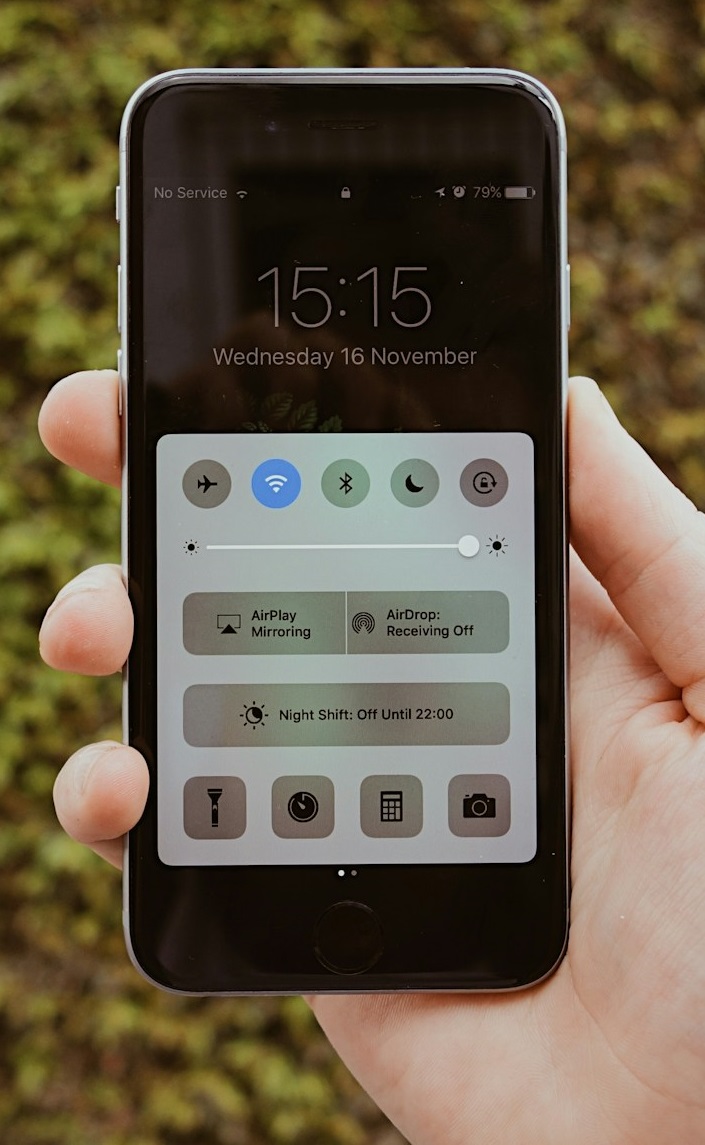
Standard Method (Works on All 5G iPhone’s)
- Open Settings
- Tap Cellular (in India this shows as “Mobile Data” on some carrier configurations)
- Tap Cellular Data Options
- Tap Voice & Data
- Select LTE
Your iPhone will now use 4G LTE instead of 5G. The 5G icon in your status bar will be replaced by LTE.
iPhone With Dual SIM
If you use dual SIM, the process has one extra step:
- Open Settings
- Tap Cellular
- Tap the SIM you want to change (Primary or Secondary)
- Tap Cellular Data Options
- Tap Voice & Data
- Select LTE
You need to do this for each SIM separately if you want both on 4G.
The “5G Auto” Middle Ground
Apple gives you a third option called 5G Auto. This is worth knowing about – it lets your iPhone use 5G only when the network is strong enough that it will not meaningfully impact battery. In weak coverage areas, it automatically drops back to 4G.
For most users in India’s current 5G landscape, 5G Auto is actually a reasonable setting. It gives you 5G speeds when they matter and saves battery when the signal is patchy. I ran both settings on my iPhone 15 for a week each and found 5G Auto saved about 15 minutes of extra battery compared to full 5G – while LTE saved about 40 minutes.
For maximum battery life: select LTE. For a balanced approach: select 5G Auto.
To Turn 5G Back On
Go back to Settings → Cellular → Cellular Data Options → Voice & Data → select 5G On or 5G Auto.
How to Turn Off 5G on Android – Step by Step
Android phones vary by manufacturer, so I have covered the four most common ones separately. The underlying setting is the same – you are changing the preferred network type from 5G to LTE/4G.
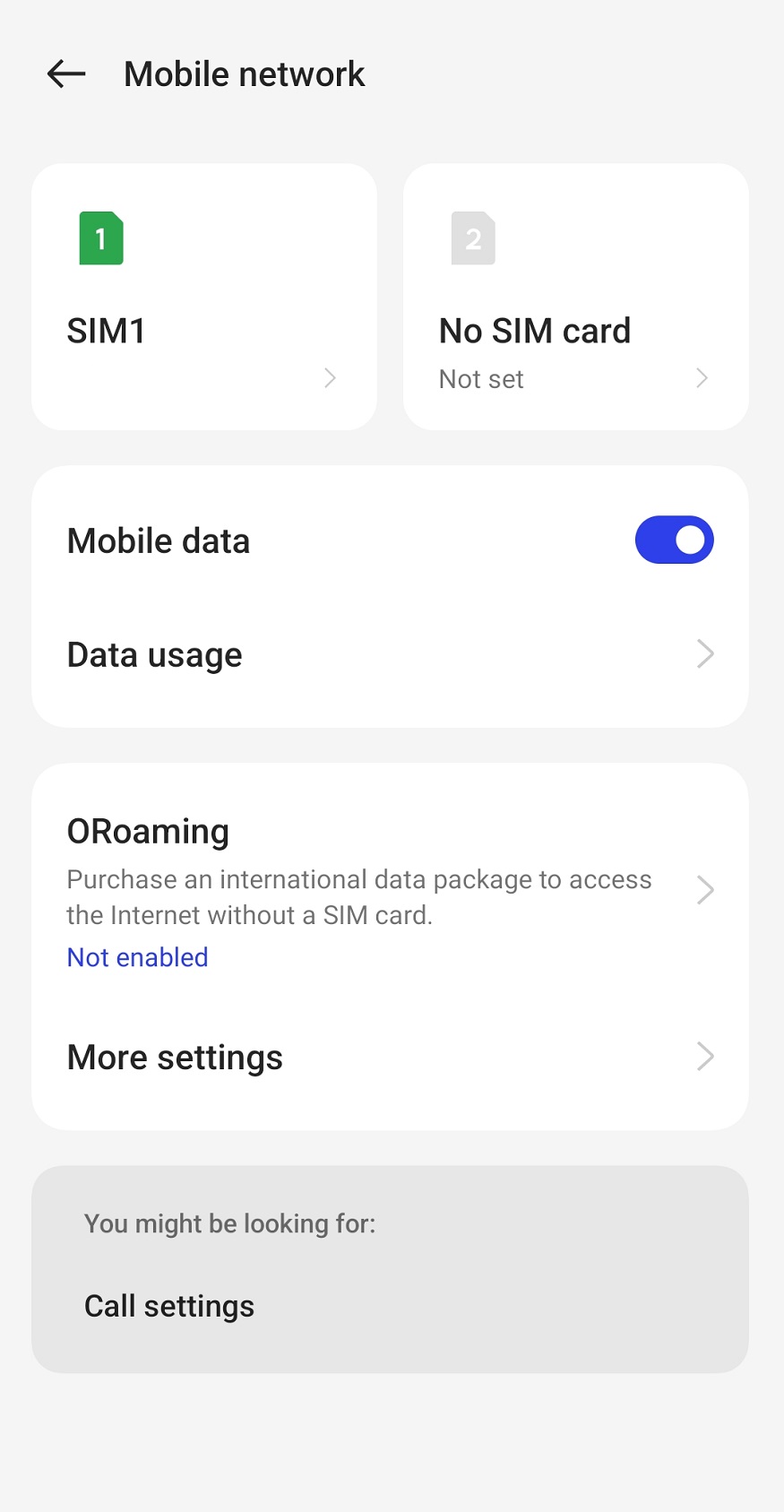
Android Brands Quick Reference
| Phone Brand | Path to Turn Off 5G | Time |
| Samsung | Settings → Connections → Mobile Networks → Network Mode → LTE | 30 sec |
| Redmi/Xiaomi | Settings → SIM Cards & Mobile Network → SIM → Preferred Network Type → 4G | 30 sec |
| OnePlus | Settings → Wi-Fi & Network → SIM & Network → SIM → Preferred Network Type → 4G | 35 sec |
| Google Pixel | Settings → Network & Internet → SIMs → SIM → Preferred Network Type → LTE | 30 sec |
| Vivo | Settings → SIM Card & Mobile Network → SIM → Network Mode → 4G | 30 sec |
| Oppo/Realme | Settings → SIM & Mobile Network → SIM → Preferred Network Type → 4G | 30 sec |
| Motorola | Settings → Network & internet → SIMs → SIM → Preferred network type → LTE | 30 sec |
How to Turn Off 5G on Samsung
Samsung is the most common Android phone globally and the steps are straightforward.
- Open Settings
- Tap Connections
- Tap Mobile Networks
- Tap Network Mode
- Select LTE/3G/2G (Auto) or simply LTE
On newer Samsung Galaxy models (S23, S24, S25 series), you may see the option labeled as 4G/3G/2G instead of LTE – these are the same thing. Select whichever option does not include 5G in the name.
One thing Samsung users should know: Some carrier-locked Samsung phones in the US have the Network Mode option removed entirely. If you do not see it, contact your carrier – this is a carrier restriction, not a Samsung limitation. Carriers like T-Mobile sometimes lock this setting.
How to Turn Off 5G on Redmi and Xiaomi
Redmi is the most popular Android brand in India, so I am covering this separately.
- Open Settings
- Tap SIM Cards & Mobile Network (or just Mobile Network)
- Tap on your active SIM
- Tap Preferred Network Type
- Select 4G/3G/2G or LTE
On MIUI and HyperOS (Xiaomi’s software), this option is sometimes under Settings → SIM Cards → SIM 1 → Network Type.
How to Turn Off 5G on OnePlus
- Open Settings
- Tap Wi-Fi & Network
- Tap SIM & Network
- Select your SIM
- Tap Preferred Network Type
- Select 4G/LTE
How to Turn Off 5G on Google Pixel
- Open Settings
- Tap Network & Internet
- Tap SIMs
- Select your SIM
- Tap Preferred network type
- Select LTE from the list
Pixel phones running Android 13 and above may show this option as 4G (recommended) – that is the one you want.
Read Also >>> How to Clear Cache on Android
What Actually Changes When You Turn Off 5G
5G vs 4G LTE
| Feature | 5G | 4G LTE |
| Download Speed | Up to 1-10 Gbps | Up to 100-300 Mbps |
| Battery Usage | 15-20% more drain | More efficient |
| Coverage (India) | Metro cities only | Nationwide |
| Overheating | More common | Less common |
| Voice Calls | VoLTE | VoLTE |
| WhatsApp/Browsing | Same as 4G | Same as 5G |
| Streaming (YouTube) | Same as 4G | Same as 5G |
| Large File Downloads | Much faster | Slower |
| Weak Signal Areas | Battery drain | More stable |
| Crowded Areas | Often congested | Less congested |
Here is what you will and will not notice after switching to 4G LTE:
What improves:
- Battery life – noticeably better in areas with patchy 5G
- Phone temperature – runs cooler during regular use
- Connection stability – fewer random data drops
- Voice call quality in some areas – 4G VoLTE is well-optimized
What gets worse:
- Download speeds for large files – 5G is significantly faster for downloads when the signal is strong
- Upload speeds for video calls and cloud backups
- Streaming quality ceiling – though for most video streaming, 4G LTE is genuinely fast enough
Look – for most of what we actually do on our phones day to day, 4G is completely fine. The speed difference only becomes meaningful when downloading large files or using data-heavy applications in areas with strong 5G coverage.
The India-Specific Situation
If you are in India and wondering whether to turn off 5G, here is my practical take.
Jio 5G and Airtel 5G are both expanding rapidly in 2026 – coverage in metros like Delhi, Mumbai, Bengaluru, and Hyderabad is now fairly solid in central areas. However, suburban areas and smaller cities are still primarily 4G territory.
I keep my phone on 5G Auto when I am in central Delhi but switch to LTE when traveling to areas outside metro coverage. The difference in battery life during a long commute is noticeable enough to be worth the extra two taps.
You can check your carrier’s actual 5G coverage using these official tools:
- Jio 5G coverage map: jio.com/5g
- Airtel 5G coverage map: airtel.in/5g
- Vi 5G availability: myvi.in
FAQ
Will turning off 5G affect my calls?
No. Phone calls on modern devices use VoLTE (Voice over LTE) regardless of whether you are on 5G or 4G. Turning off 5G will not affect voice call quality, reception, or reliability in any meaningful way.
Why can’t I find the Network Mode option on my Android?
Two common reasons: your carrier has locked the setting (common with operator-branded phones in the US), or the option is in a slightly different location on your specific device. Try searching “network mode” or “preferred network” in your Settings search bar – it almost always surfaces the option directly. If it is genuinely missing, contact your carrier.
Does turning off 5G on Android slow down my internet?
If you’re in a strong 5G zone, yeah, you’ll lose those peak speeds. But funnily enough, in weak coverage areas it can go the other way - your phone stops burning time hunting for a signal it can’t hold onto, so 4G LTE actually ends up feeling faster and more stable.
Can I set my phone to turn off 5G automatically at night?
Not natively on iPhone, unfortunately - Apple hasn’t built in a scheduler for this. Android users have a bit more flexibility here; apps like MacroDroid or Tasker (both free on the Play Store) let you automate network switching based on time, location, or even battery percentage.
Final Word
Turning off 5G is one of the simplest phone optimizations most people never try. Two taps in Settings and your phone runs cooler, lasts longer, and often connects more reliably – especially if you spend time in areas where 5G coverage is still inconsistent.
Try it for one full day and see if your battery situation improves. If it does, keep it off. If you do not notice a difference, you are probably in a well-covered area and 5G is working as intended – leave it on.
For more tech guides like this, check out our How To section at TechExploria.com – and drop any questions in the comments below. I read every single one.


Post Comment