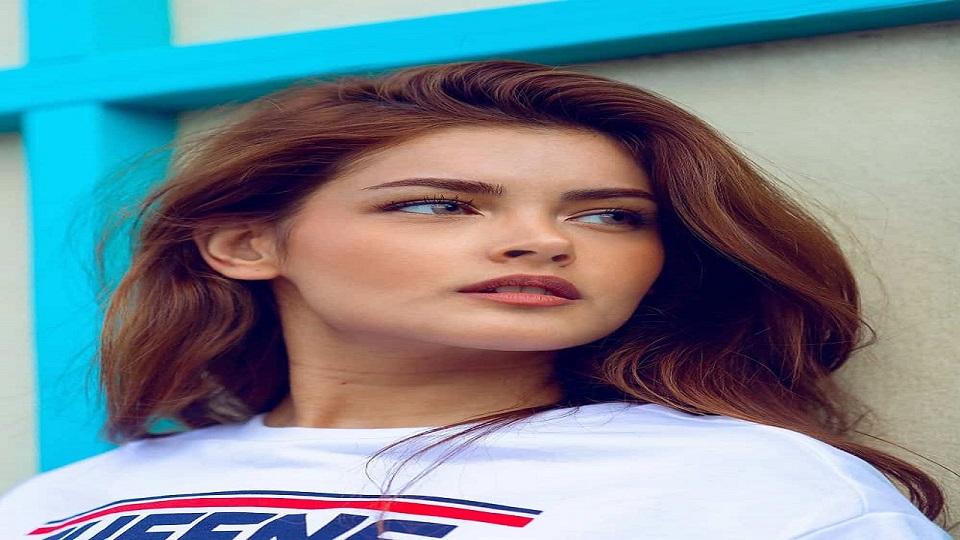
I almost got a butterfly haircut two months ago based purely on Instagram reels. The before-and-after videos made it look effortless – soft layers, movement, that perfect bouncy finish. Then I actually sat down with my stylist and described it, and her face did this thing where her eyebrows went up slightly and she said “let’s just see how it looks first.”
That hesitation is exactly why I started using Gemini for hairstyle previews before any salon decision now. Not because it is perfect – it is not – but because it turned an awkward verbal description into an actual image both my stylist and I could look at together.
If you have ever shown a stylist a celebrity photo and silently prayed your hair would somehow cooperate the same way, this guide is for you. I am sharing the exact Gemini AI hairstyle prompts I personally tested, including several attempts at the butterfly hair cut that took me longer to nail than I expected.
Quick Answer: To get a realistic Gemini AI hairstyle preview, upload a clear front-facing photo and use a prompt that specifies the exact style name, length, texture, and an instruction to keep your face, skin tone, and background unchanged.
Why I Stopped Showing My Stylist Random Photos
Here is the problem nobody talks about. Every “inspiration photo” you find online belongs to someone with completely different hair density, a different face shape, and usually a professional blowout you will never replicate at home. I learned this after getting a wolf cut that looked nothing like the influencer photo I brought in – because her hair was twice as thick as mine.
Gemini changed that equation for me. Instead of hoping a stranger’s haircut would translate to my face, I could generate a version of the cut on my own photo first. Same bone structure, same hair texture, same lighting I actually live in. It is not a guarantee, but it removed about 80% of the guesswork.
How I Actually Use Gemini for Hairstyle Previews
This part took me a few failed attempts to get right, so let me save you the trial and error.
Getting Gemini to Actually Listen to You
Open Gemini and upload a recent photo – front-facing, decent lighting, hair pulled back from your face if possible. The biggest mistake I made early on was using a photo where my hair was already styled in a completely different shape. Gemini reads your hairline and face width from the photo, so a clean, neutral starting point gives noticeably better results.
Then type your prompt directly into the chat. Gemini will generate the image right there – no separate tool needed, which honestly surprised me the first time I tried it.
The Prompt Structure That Actually Worked for Me
After several rounds of trial and error, here is the formula I landed on:
Style Name + Length + Texture + Color (if changing) + Face Preservation Instruction
A prompt like “give me bangs” produces something completely random. A prompt like “Give me a chin-length French bob with soft inward curl at the ends and natural shine, keeping my exact face, skin tone, and background unchanged” gives Gemini something specific enough to work with.
My Actual Tested Gemini AI Hairstyle Prompts
These are the exact prompts I ran, in the order I ran them, including the ones that did not work the first time.
The Butterfly Hair Cut – My Most Tested Prompt
This took me four attempts to get right, so I am sharing the version that actually worked.
What didn’t work:
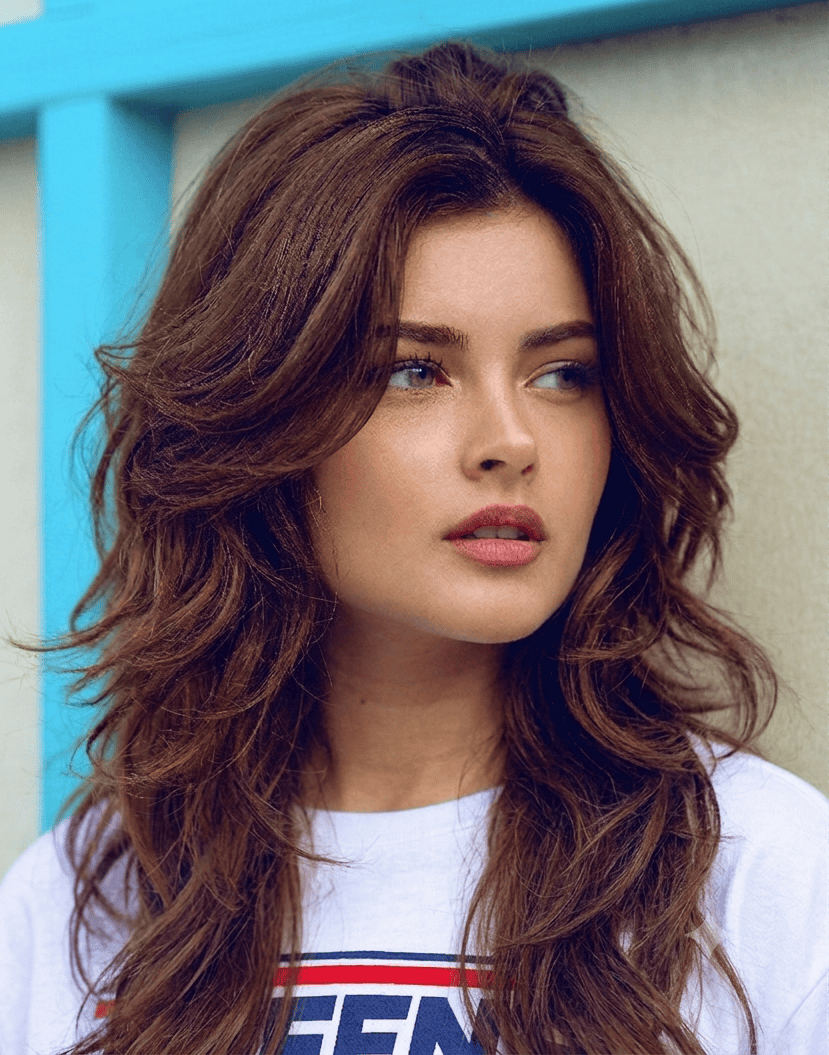
“Give me a butterfly cut”
This gave me something that looked more like generic layers than the specific shape I had seen online.
What worked:
“Transform my hair into a butterfly hair cut with shorter face-framing layers around the crown that blend into longer length at the back, creating visible volume and movement at the top while keeping the overall length long. Natural wavy texture, soft ends, keep my exact face, skin tone, expression, and background completely unchanged, photo realistic result.”
The difference was specifying where the short layers sat (around the crown, not randomly throughout) and explicitly describing the length contrast that makes a butterfly cut recognizable as a butterfly cut rather than just “some layers.”
The Curtain Bangs Test
I was on the fence about bangs for almost a year. This settled it in about thirty seconds.
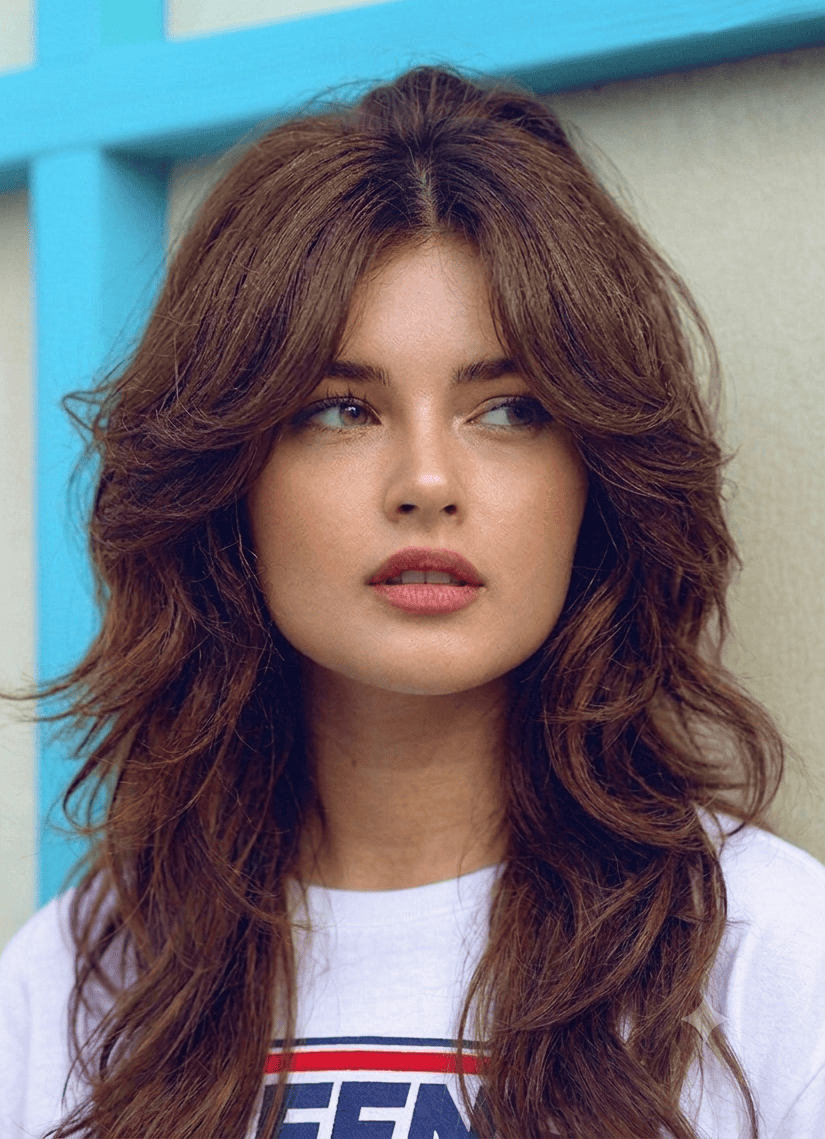
“Add soft curtain bangs that part naturally in the middle and frame both sides of my face, blending into my current length, with natural movement and slight texture at the ends. Keep my exact face, skin tone, and background unchanged.”
The Color-Only Change
I wanted to see a warmer tone without touching my cut at all.
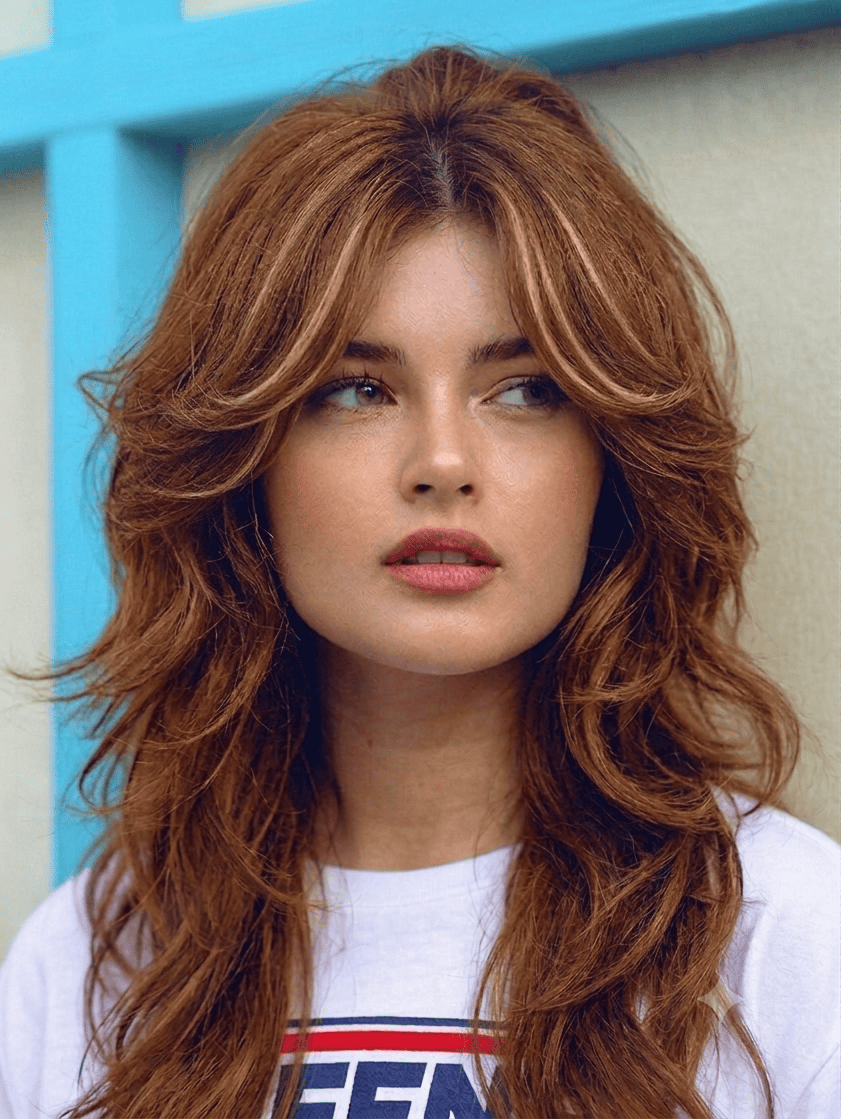
“Change only my hair color to a warm honey brown with subtle lighter pieces around the face, keeping my exact haircut shape, length, face, skin tone, expression and background completely unchanged.”
This one mattered more than I expected – specifying “only my hair color” stopped Gemini from accidentally shortening my length, which happened on my first attempt without that instruction.
The Full Transformation Test
For when you genuinely have no idea what direction to go.
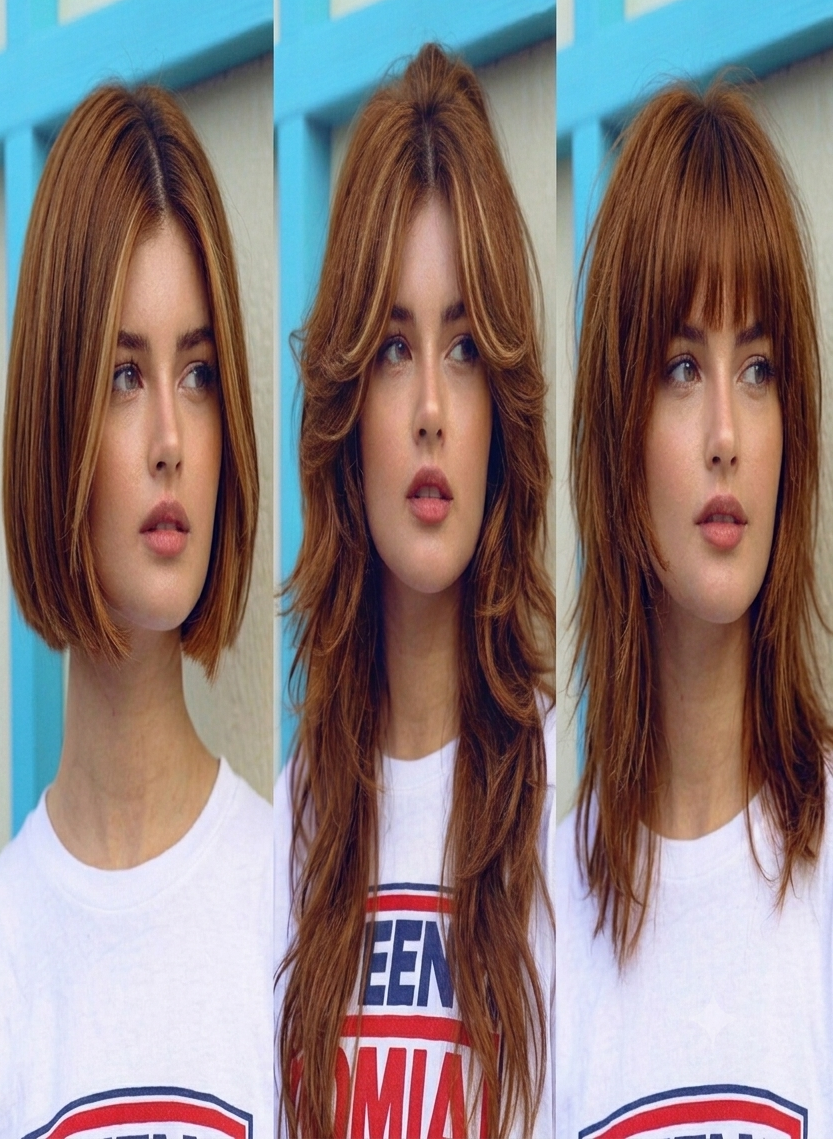
“Show me three completely different hairstyle directions on this photo – one shorter and structured, one long and layered, one with bangs. Keep my exact face, skin tone, and background unchanged across all three, photo realistic results.”
Getting three options in one response instead of running three separate prompts saved a noticeable amount of time.
What Gemini Consistently Gets Wrong
I want to be honest here because most guides gloss over this part.
Texture is the weak point. Every result Gemini gave me looked slightly smoother and more “salon fresh” than my real hair texture. If you have thick, coarse, or very curly hair, expect the simulation to look a bit tidier than your actual results without serious styling effort.
Length perception shifts. I asked for “shoulder length” three separate times and got three slightly different lengths. Being extremely specific – “exactly at the collarbone” instead of “shoulder length” – improved consistency.
It sometimes changes more than the hair. On two occasions, my expression shifted slightly between the original and generated photo. Always explicitly state “keep my expression unchanged” if this matters to you.
How I Showed These Results to My Stylist
A generated image alone is not enough information for a stylist to work with – I learned this the hard way. What actually helped:
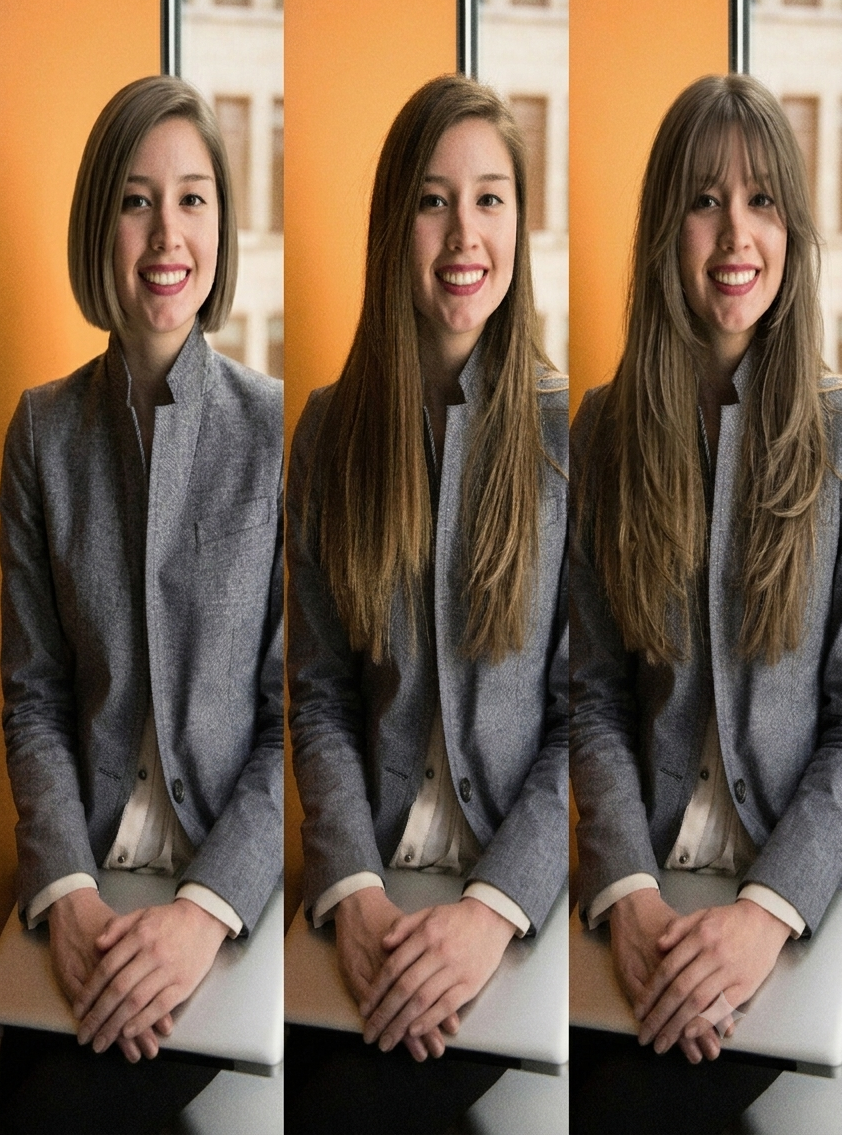
I printed the Gemini result alongside my original photo and pointed out specifically where the layers started, not just the overall shape. I also asked her directly whether my hair density could realistically support the volume shown in the image. She told me my hair was thinner than what the AI rendered, which led us to adjust the layering technique slightly before cutting – information I would not have had without that conversation.
For a different perspective on building face-shape-appropriate prompts and matching styles to your features, The Right Hairstyles has a useful breakdown worth checking alongside your own testing.
FAQ
Do I need a professional photo for Gemini hairstyle prompts to work?
No. A clear, well-lit selfie taken near a window works fine. What matters more than photo quality is making sure your hair is pulled back or styled neutrally in the original photo, since Gemini reads your hairline and face shape from it.
Why does my Gemini hairstyle result look different from real life?
Gemini tends to smooth out hair texture and can be inconsistent with exact length unless you are very specific. Treat the result as a directional guide for shape and style, not an exact preview of texture or density.
Is Gemini better than other AI hairstyle tools?
Gemini is genuinely convenient because it works directly in chat with no separate app needed. For deeper exploration with preset style options and color libraries, dedicated tools can offer more structured starting points - but for quick, specific tests, Gemini has been reliable enough for my actual decisions.
Can I test hair color and a new cut in the same prompt?
Yes, but I found better consistency testing them separately first, then combining once I knew which cut and which color I actually wanted. Combining both in one prompt from the start sometimes produced results where neither change was fully accurate.
Final Word
The butterfly cut I almost got based on a reel? I ended up going with a modified version after seeing the Gemini preview – slightly less dramatic layering than what I originally wanted, because the simulation showed me it would not sit the way I imagined on my hair length.
That is genuinely the value here. Not a perfect prediction, but enough information to walk into a salon with realistic expectations instead of crossed fingers.
Try one of these prompts on your own photo before your next appointment. Start specific, adjust one detail at a time if it does not look right, and bring the result into the actual conversation with your stylist – not as a demand, but as a starting point.
For more honest AI tools guides, visit TechExploria.com – and let me know in the comments if you try the butterfly cut prompt. I am curious how it renders on different hair types.





1 comment