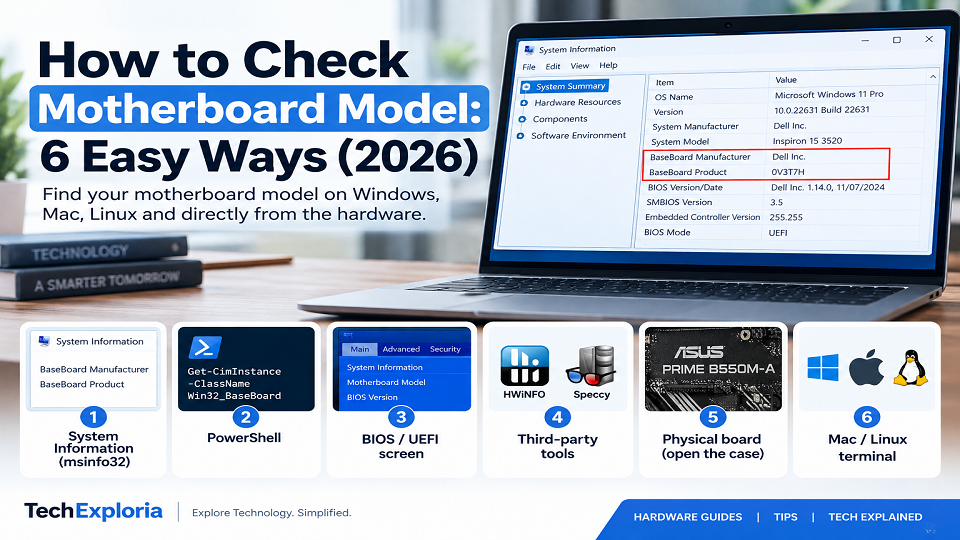
How to Check Motherboard Model: 6 Easy Ways (2026)
Press Win + R, type msinfo32, hit Enter. Under System Summary, look at Baseboard Manufacturer and Baseboard Product – that’s your motherboard’s maker and model, right there. No case-opening, nothing to download. That’s really all there is to how to check motherboard model on most Windows PCs.
That’s it for most people, honestly. But if that comes up blank, or you’re on Mac or Linux, or it’s a laptop rather than a desktop you’re trying to figure out, keep reading – the rest of this covers those cases, plus what to actually do once you’ve got the model number in hand.
The Six Methods, at a Glance
| Method | Difficulty | Download Required | Works Without Windows |
| System Information (msinfo32) | Easy | No | No |
| PowerShell | Easy | No | No |
| BIOS / UEFI screen | Easy | No | Yes |
| Third-party tools (HWiNFO, Speccy) | Easy | Yes | No |
| Physical board (open the case) | Moderate | No | Yes |
| Mac / Linux terminal | Easy | No | Yes |
Start with msinfo32 regardless – this table’s really just here to help you pick a backup if that first method doesn’t give you what you need.
Why Anyone Bothers Looking This Up
Nobody checks their motherboard model for fun. It’s almost always one of three situations: buying RAM and needing to know the type and speed the board actually supports, chasing down a BIOS update because something’s not compatible, or troubleshooting with tech support who’s asking for details you don’t have memorized. Whatever brought you here, the model number lets you look up the motherboard’s socket, chipset, supported RAM, storage interfaces, and other compatibility details before an upgrade.
1. System Information: Your First Stop
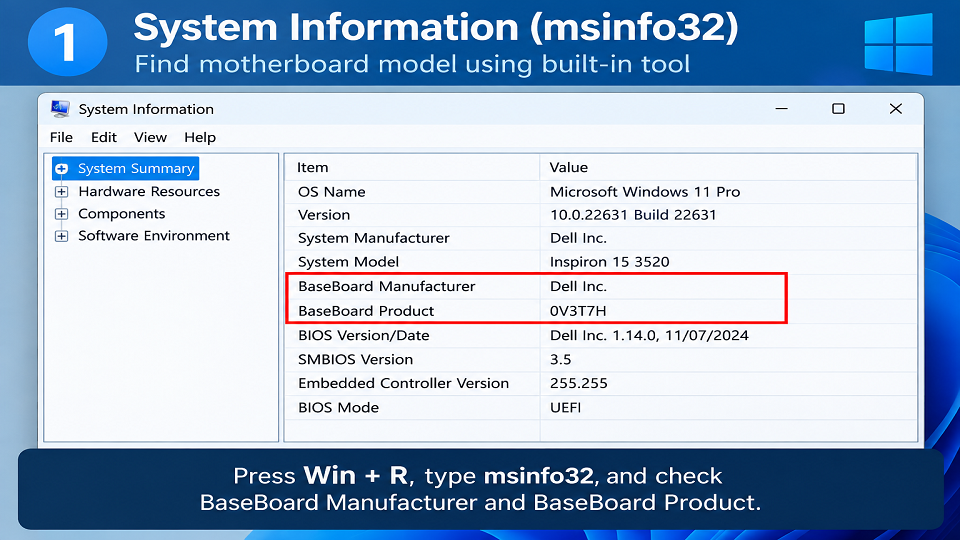
Built into Windows already, so there’s nothing to install here.
Press Win + R, type msinfo32, hit Enter. System Summary opens by default. Look for Baseboard Manufacturer and Baseboard Product – those two fields together give you the maker and model. Need your BIOS version too, for an update? It’s sitting right there under BIOS Version/Date.
Because System Information is built into Windows, it’s usually the easiest place to start when you need to identify motherboard details. Microsoft documents the tool’s full switches and behaviour on its official support page, if you ever need the command-line export options for a support ticket.
2. When That Doesn’t Work: PowerShell
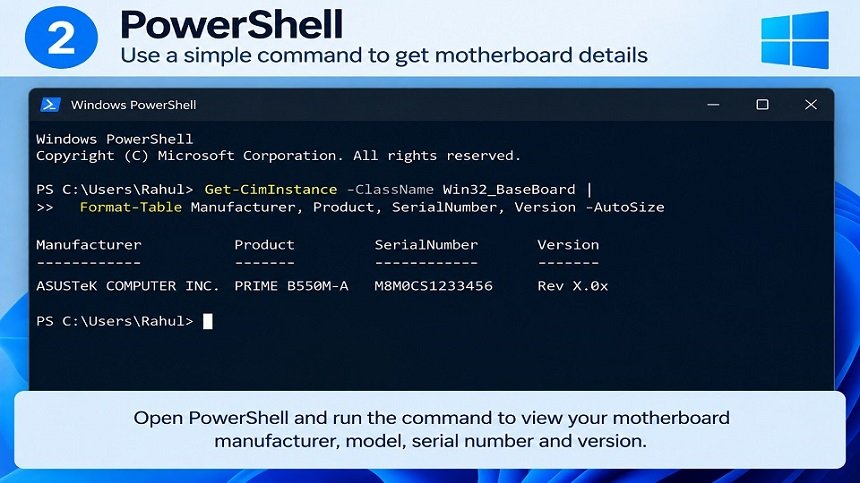
On some systems, System Information may not show complete motherboard details, so PowerShell provides another built-in option. The command line usually fills the gap.
Open PowerShell and run:
Get-CimInstance -ClassName Win32_BaseBoard | Format-Table Manufacturer, Product, SerialNumber, Version -AutoSize
This command can return the motherboard manufacturer, product name, serial number, and version, depending on the information reported by your system.
You may still find older guides recommending the wmic command for this task. Microsoft has deprecated and removed the WMIC utility from current supported Windows versions, while the underlying Windows Management Instrumentation functionality remains available through PowerShell and other supported methods.
3. Checking the BIOS or UEFI Screen Directly
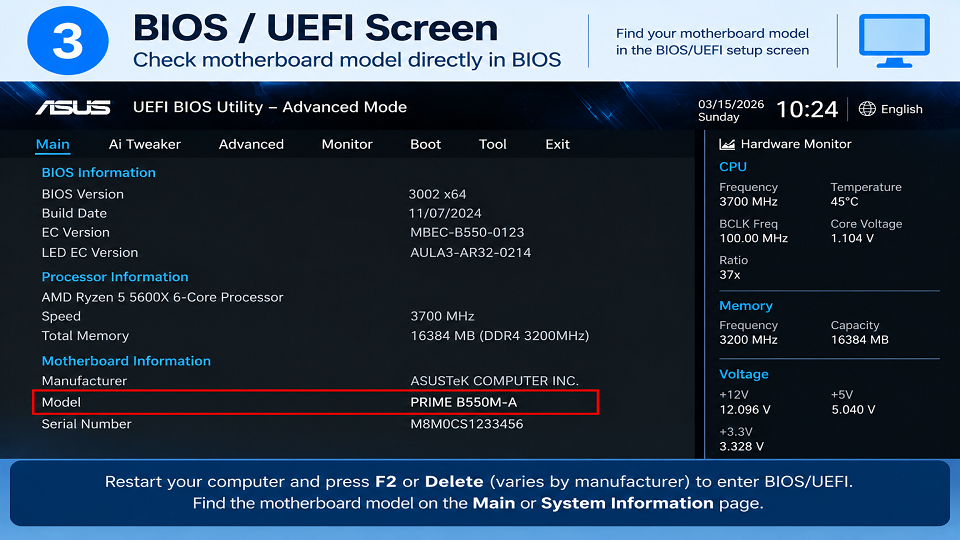
This one doesn’t need Windows running at all, which is handy if your OS won’t boot.
Restart, and as it powers on, tap F2 or Delete repeatedly – the exact key varies by manufacturer, and Esc or F10 shows up on some boards too. Once you’re into the BIOS or UEFI setup screen, the model is usually right there on the Main or System Information page, next to the BIOS version.
4. Third-Party Tools – Worth Knowing the Risk First
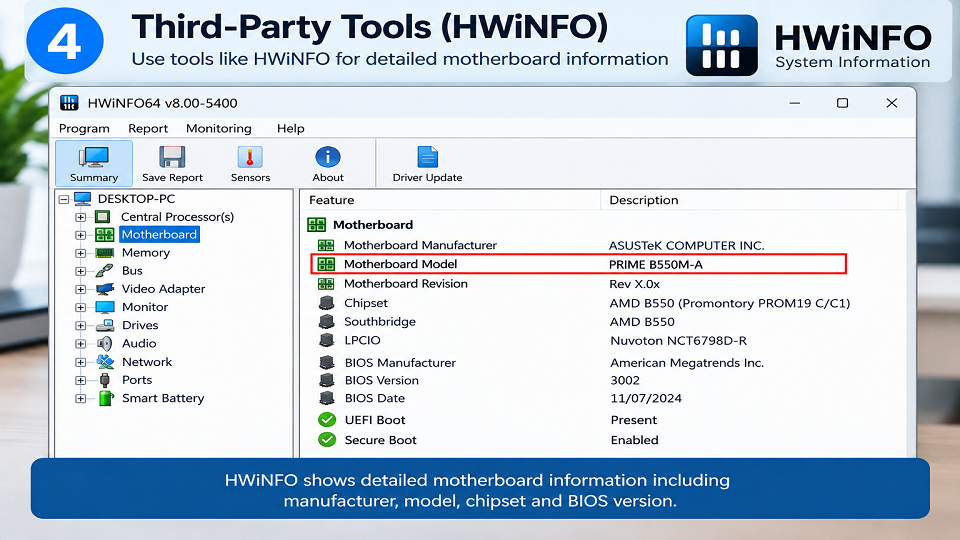
HWiNFO and Speccy go further than anything built into Windows: chipset, BIOS version, sometimes even the RAM slot layout, all in one window. HWiNFO puts this under Main Circuit Board; Speccy lists it under Motherboard on its Summary page.
Here’s what most guides skip entirely: download these only from the developer’s actual site – hwinfo.com for HWiNFO, and ccleaner.com/speccy for Speccy, since Piriform (the company behind CCleaner) owns it. Not a ‘download.com’-style mirror, not a search ad that looks close enough. Review the installation options carefully before proceeding, and if an installer offers additional software you didn’t ask for, decline anything unnecessary.
Built-In Tools or Third-Party Software? Here’s the Trade-off
Windows’ own tools have the obvious advantage: they’re already there, cost nothing, and there’s zero risk of grabbing the wrong file since there’s no download at all. The downside is they occasionally come back blank on certain OEM systems, and they simply don’t show as much detail as a dedicated tool would – no live temperatures, no RAM slot breakdown.
Third-party tools flip that trade-off. You get a much fuller hardware picture in one place, and they tend to fill in exactly the gaps Windows leaves blank. The cost is the download itself – some risk if you don’t source it correctly – and the fact that it’s honestly overkill if all you need is a one-time model number.
If this is a single lookup, stick with what’s already on your PC. If you’re the kind of person who checks hardware specs regularly, a third-party tool from the official source earns its place.
5. Opening the Case (Desktops Only, Last Resort)
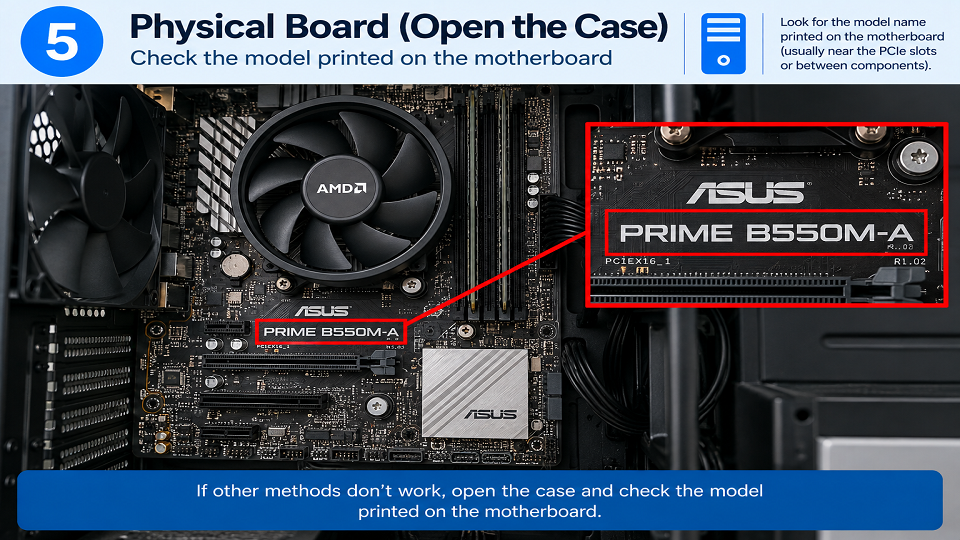
If none of the above turns up anything – which does happen on some heavily customized OEM builds – you can open the case and look directly at the board. The model number is typically printed right on it, often near the RAM or PCIe slots.
Before opening the case, shut down the computer completely and unplug it. Take appropriate precautions against static electricity, and avoid touching exposed contacts or components unnecessarily while checking the board.
Laptops don’t really work this way. The board isn’t accessible without disassembly, and even if you got to it, it’s not going to have a clearly printed model number the way a desktop board does.
6. What About Mac and Linux?
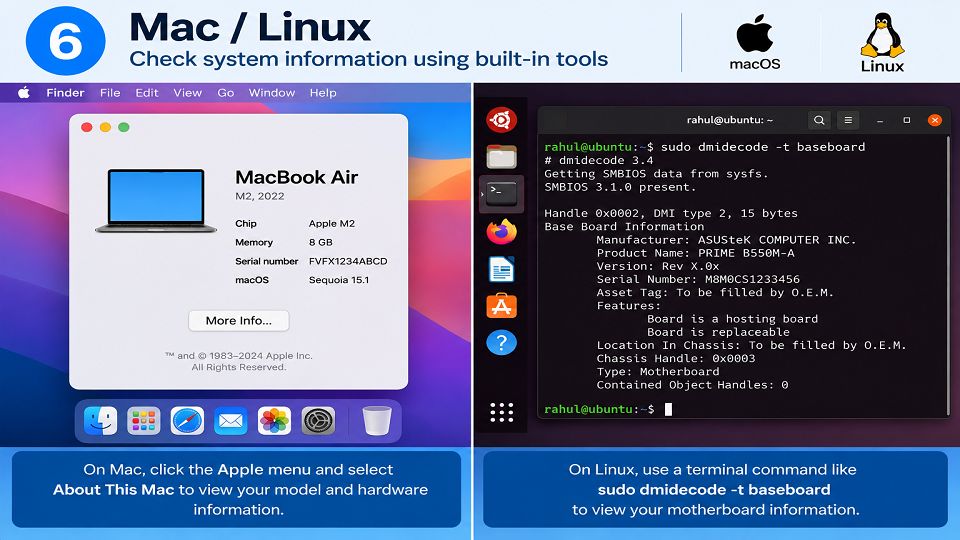
Most guides on this stop at Windows entirely, so here’s the short version for everyone else.
On Linux, you can use the dmidecode utility to read the motherboard information from the system’s hardware tables. Open Terminal and run:
sudo dmidecode -t baseboard
Look for fields such as Manufacturer, Product Name, Version, and Serial Number. Depending on the Linux distribution, dmidecode may need to be installed first.
Mac works differently from a typical Windows PC. Apple doesn’t generally expose a user-facing motherboard model in the same way PC manufacturers do. If you need to identify your Mac for compatibility, support, or hardware information, go to Apple menu → About This Mac. You’ll find the Mac model and relevant hardware information there.
For Macs, the computer’s model name and identifier are generally more useful than looking for a conventional replaceable motherboard model.
If It’s a Laptop, Not a Desktop
Laptops complicate things. The same System Information and PowerShell methods above will usually still return a manufacturer and product string, but it tends to matter less than it would on a desktop, since laptop boards are rarely sold or documented as standalone parts.
What’s actually more useful for a laptop is the notebook’s own model number – found on a sticker underneath, or in msinfo32’s “System Model” field rather than the baseboard fields – since that’s what manufacturers tie to their official service manuals and upgrade lists, usually limited to RAM, storage, and occasionally the Wi-Fi card.
A Word About Dell and HP Prebuilts
Got a prebuilt from Dell or HP? Don’t be surprised if the model number doesn’t match anything sold separately anywhere. Both companies commonly use proprietary boards built specifically for their own prebuilt lines, so it won’t turn up in a regular retailer search. You’ll still get chipset info from the methods above, though, and that’s usually enough to confirm RAM type and speed even without the exact board being documented anywhere public.
Frequently Asked Questions
Why does System Information show blank or unknown for my board?
Usually an OEM prebuilt where the manufacturer never filled in that data at the firmware level. Try the PowerShell CIM command instead, or check your BIOS/UEFI screen directly.
Is downloading something like Speccy actually safe?
It is, as long as it comes straight from the developer’s own site rather than a mirror or search ad. Bundled adware is a real risk specifically with system-info tools, since people download them in a rush while troubleshooting.
Can I find this out without opening my PC at all?
Yes - msinfo32, PowerShell, and your BIOS/UEFI screen can all help you identify the motherboard without opening the case. Opening the case should be your last option, not your first.
Do laptops even have a motherboard model I can look up?
Technically, yes, but it rarely matters on its own. For laptops, it’s the notebook’s own model number that manufacturers actually use for service manuals and supported upgrades – not the internal board’s.
Final Thoughts
For most people, this whole thing begins and ends with msinfo32 – already on your PC, done in under a minute. Once you know how to check motherboard model using that one tool, keep the command-line and BIOS methods in reserve for the handful of cases where the easy route comes up empty, and treat opening the case as the fallback it’s meant to be, not a first step.
Once you’ve got the model number sorted, our Tech Guides section and Gadgets category can help with what comes next – picking compatible RAM, or deciding whether that BIOS update is actually worth doing.
Have questions about how we cover PC hardware topics? Check our contact us directly.