How to turn off Find My iPhone is one of those tasks that sounds simple until something goes wrong. I found that out while preparing my old iPhone 13 for a trade-in. I expected the whole process to take less than a minute, but I couldn’t remember my Apple Account password and quickly realized there were a few things most guides don’t mention. If you’re wondering how to turn off Find My iPhone safely before selling, trading in, or repairing your device, this guide walks you through the exact steps and the issues I ran into along the way.
I’ve done this four times now. My own phone, my mom’s phone, a used iPhone I bought off Facebook Marketplace, and a work iPad that somehow still had my old boss’s account linked to it. Every single time, something small tripped me up, and it was never the part I expected.
This isn’t a copy of the usual “go to Settings” list you’ve probably already seen. It’s what actually happened, what I used to get unstuck, and the order I’d do things in if I were starting over today.
Quick Answer: Settings → Your Name → Find My → Find My iPhone → Toggle Off → Enter Apple ID Password. Done in under 2 minutes.
What Find My iPhone Is Actually Doing in the Background
Most people think Find My is just the “locate my phone on a map” feature. It’s more than that. The second you switch it on, Apple quietly attaches something called Activation Lock to the device – tied directly to your Apple Account (formerly Apple ID), at a hardware level. You can wipe the phone, pull the SIM, factory reset it five times in a row, and none of it matters if Activation Lock is still pointing at someone’s account. That’s exactly why my trade-in got rejected the first time. Find My was technically “off” on the phone, but my carrier’s system still flagged it.
Things to Check Before You Turn Off Find My iPhone
Learned these the annoying way, so here you go:
- Make sure you actually remember your Apple ID password – not your phone passcode, your Apple ID password. It’ll ask for it, no way around it.
- Check whether Stolen Device Protection is turned on. If it is, Apple adds a mandatory one-hour wait (a “Security Delay”) before you’re even allowed to disable Find My. I didn’t know this existed until the toggle just sat there doing nothing, and for a good ten minutes I genuinely thought my phone had glitched.
- Back up anything you care about, especially if you’ll be erasing the device afterward. iCloud backup works fine on Wi-Fi; plugging into a computer is faster if your connection’s slow.
Two Ways to Turn It Off – and When I’d Use Each
| Method | Best for | What you need | Roughly how long |
| Settings on the device | Phone is physically in your hand, powered on, unlocked | Apple ID password | 1–2 minutes |
| icloud.com/find (browser) | Phone is lost, sold, or with someone else who can’t access the settings | Apple ID + password for that account | 3–5 minutes |
Method 1: How to Turn Off Find My iPhone Using Settings
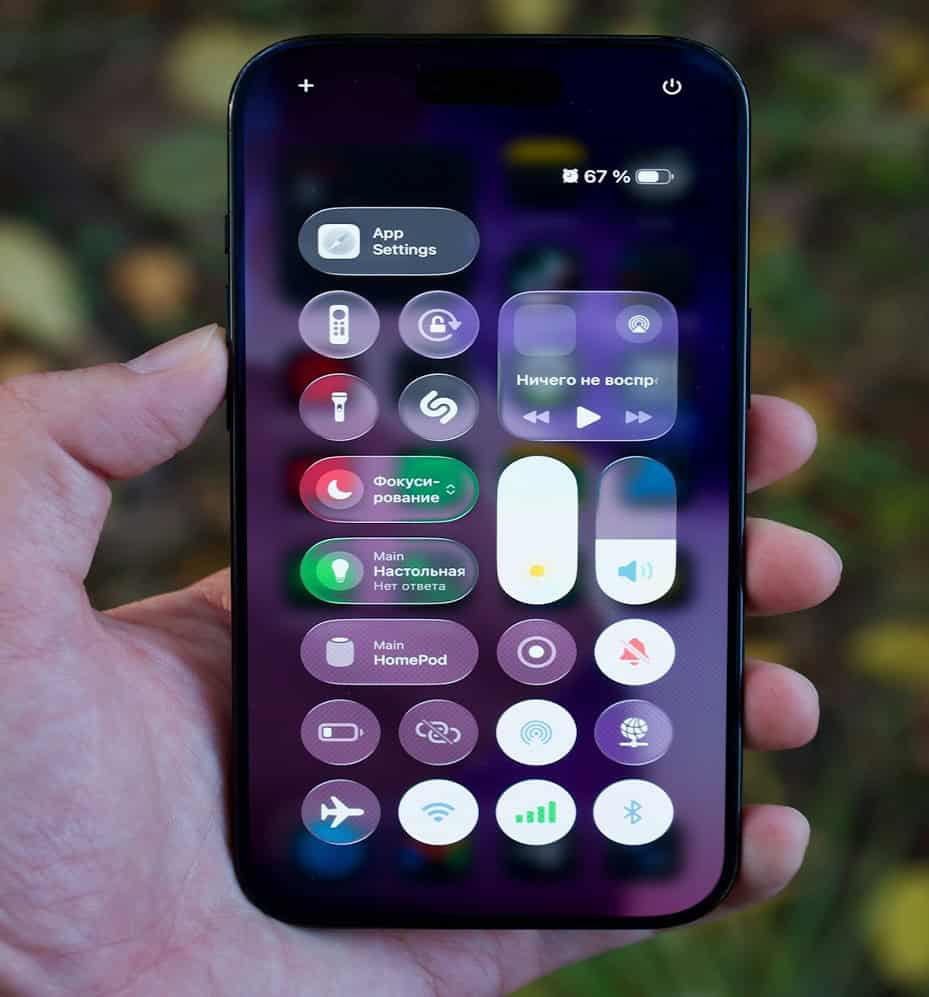
- Open Settings, tap your name at the top.
2. Tap Find My.
3. Tap Find My iPhone.
4. Flip the toggle off.
5. Enter your Apple ID password, confirm.
If the toggle just refuses to move – don’t restart the phone in frustration like I did – check Settings > Screen Time > Content & Privacy Restrictions and make sure “Account Changes” isn’t locked. Cost me twenty minutes on my mom’s phone because she’d set up restrictions years ago and completely forgotten.
Method 2: How to Turn Off Find My iPhone Remotely Using iCloud
This one saved me when I bought that used iPhone off Marketplace and the seller needed to release it from their account without the phone actually being in front of them.
- Go to com/find, sign in with the Apple ID linked to the device.
- Click All Devices, pick the iPhone.
- If it’s online: click Erase This Device, let it finish, then Remove From Account.
- If it’s offline or already wiped, you’ll usually just get the option to Remove From Account right away – that alone strips the Activation Lock.
I use this one to help my mom remotely too, honestly more often than I’d like to admit.
How to Turn Off location on iPhone Without Touching Find My at All
Here’s something most guides gloss over completely: Turning off Find My iPhone and turning off location sharing are not the same action. If all you want is to stop sharing your location with a specific person or app – without losing the ability to track a lost phone later – go here instead:
- Settings > Privacy & Security > Location Services – turn location off per app, or system-wide if you want.
- Settings > [your name] > Find My > Share My Location – stops sharing with family or friends without disabling Find My iPhone itself.
I keep Find My iPhone on permanently for security. What I actually turn off, constantly, is location access for random apps that have no real reason to know where I am.
Forgot Your Apple ID Password? Two Tools That Actually Helped
This happened with the Marketplace phone – the seller genuinely couldn’t remember it.
- apple.com – Apple’s own reset portal. You’ll need a trusted device or the recovery email/number on file.
- Before buying a used iPhone: Ask the seller to remove the device from their Apple Account and sign out of Find My before completing the sale. During setup, if the iPhone asks for the previous owner’s Apple Account, Activation Lock is still enabled, and you should not complete the purchase until it’s removed.
Selling, Trading In, or Sending a Phone in for Repair
If the phone’s leaving your hands for any reason – trade-in, mail-in repair, resale – confirm Find My is off before it goes anywhere. My two-step check now:
- Turn off Find My iPhone (Method 1).
- Go back to com/find > All Devices and confirm the device is gone from the list, or shows as removed.
Skipping step two is exactly how my trade-in bounced back the first time. The toggle looked off on the phone. The device was still sitting in my iCloud account list, though. If you are preparing to trade in your iPhone, you might also want to check our guide on managing your iPhone settings before handing it over.

Common Problems When You Turn Off Find My iPhone
| What happened | Likely cause | Fix |
| “Incorrect Apple ID or password” (even though it was right) | Browser autofill using an old saved password | Type it manually instead of letting autofill do it |
| Toggle won’t respond / stuck for an hour | Stolen Device Protection’s Security Delay | Just wait it out – no shortcut, I tried |
| Toggle greyed out entirely | Screen Time > Content & Privacy Restrictions locked | Unlock “Account Changes” in Screen Time settings |
| Device still shows on icloud.com/find after toggling off in Settings | Sync lag or it just wasn’t fully removed | Manually remove it from icloud.com/find |
FAQs
Does turning it off delete my data?
No. The toggle alone doesn’t erase anything. Data only gets wiped if you separately hit “Erase This Device” or do a factory reset.
Is turning off Find My the same as turning off Location Services?
No, they’re separate systems entirely - see the location-sharing section above.
How do I check if a used iPhone still has Find My turned on before I buy it?
Apple no longer provides a public Activation Lock checker. The safest approach is to ask the seller to erase the device, remove it from their Apple Account, and let you go through the initial setup screen. If the iPhone asks for the previous owner’s Apple Account credentials, Activation Lock is still enabled and the device hasn’t been fully removed from their account.
What happens if I forget to turn it off before selling my phone?
The buyer hits Activation Lock and can’t use the phone until you remove it remotely – or until they track you down asking for your password, which is a conversation nobody enjoys having.
Final Thoughts
Turning off Find My iPhone is simple on paper and occasionally maddening in practice, mostly because Apple built it to be hard to disable, for good reason. If there’s one thing worth remembering out of all this: always double-check on icloud.com/find that the device is genuinely gone from your account, not just toggled off on the phone itself.
Prepping a phone to sell, trade in, or hand down to family? Drop your question in the comments – I’ll help you work through it the same way I had to.
Read Also >>> How to Clear Cache on Android



Post Comment